
The answer is yes. With pre-scheduling, you can set the date and time of a post even before the client’s approval.
This allows you to organize the calendar in advance and reduce manual tasks after content review.
What is pre-scheduling?
Pre-scheduling allows a publication to have a set date and time before final approval.
In practice, the post still depends on the approval flow but already has a scheduled publication forecast.
With this,
- You set the date and time when creating the content.
- The reviewer can see when the post is scheduled to be published.
- After approval, the scheduling can happen automatically.
- You choose what should happen if the client does not approve the content in time.
How to make a pre-scheduling
When creating a publication, you will find two options:
- Send for approval
- Send for approval and schedule

By selecting Send for approval and schedule it will be possible to set the date, time, and publication rule.
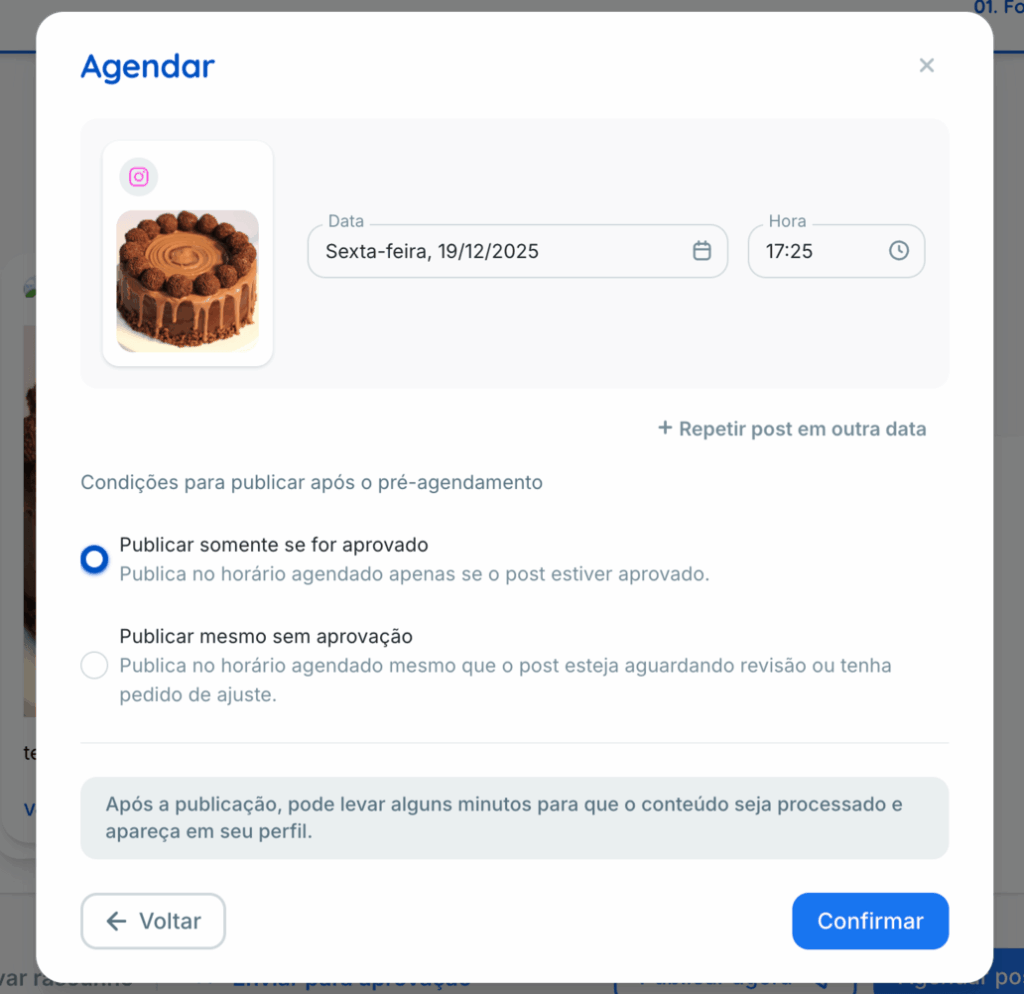
What are the available pre-scheduling rules?
Publish only if the post is approved
In this option, the publication will only occur if the client approves the content before the scheduled date.
If approval does not happen on time,
- The scheduling will be canceled.
- The missed publication will be recorded in the post history.
- Project users will be notified.
Publish even without approval
In this option, the publication will happen at the set date and time, regardless of client approval.
This setting is useful for content with a fixed publication date that cannot risk being delayed.
How to know if the pre-scheduling was set up correctly
Once the post is pre-scheduled, it will appear on the calendar with the status Scheduled and a gray indicator.
Hovering over this indicator will allow you to see which rule was set for the publication.
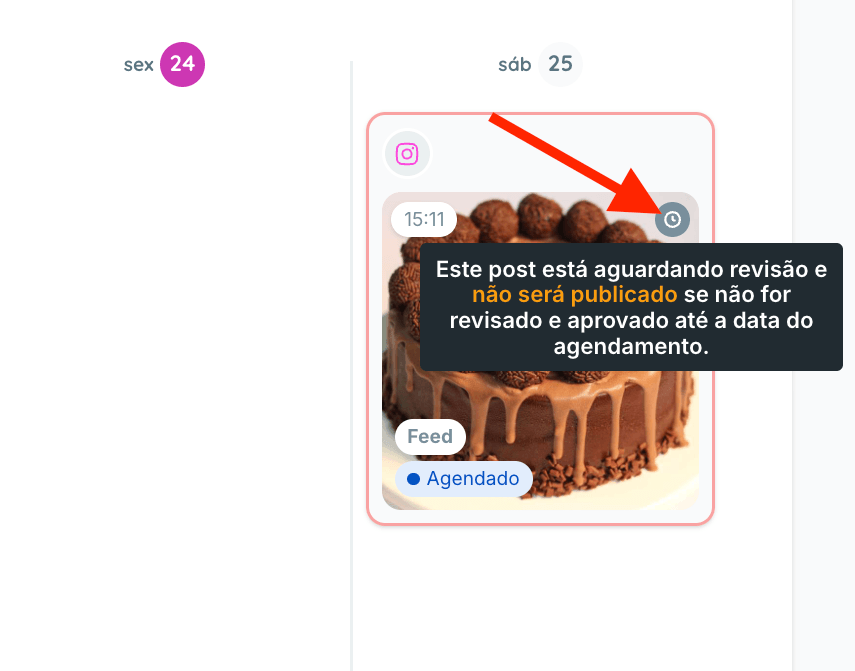
Additionally, the post will have a colored border around the image to indicate it is still awaiting review.
Meaning of borders and approval icons
Red border
Indicates that the content has not yet been approved and that the publication depends on the client’s approval to occur.
If the client does not approve in time, the post will not be published.
Green check icon
Indicates that the content has been approved.
Orange pencil icon
Indicates that the client requested a review of the post. You can see in the details and history the comments left in the review.

These indicators make it easier to identify content that needs adjustments before final approval.
How the Scheduled status works
When setting up pre-scheduling, the post displays the status Scheduled.
It’s important to remember that this status represents a publication forecast.
The actual publication will depend on the rule chosen during pre-scheduling.
- It may depend on client’s approval.
- It may occur even without approval.
What happens if the client does not approve in time
If the configured rule is Publish only if the post is approved and the client does not approve by the scheduled date,
- The post will not be published.
- It will be removed from the calendar.
- The status will be changed to Draft.
- The publication history will record that the post did not occur due to lack of approval within the timeframe.
This information is recorded so everyone involved can understand the reason for the non-publication.
History and traceability
All actions related to pre-scheduling are recorded in the publication history.
This includes:
- Approvals
- Adjustment requests
- Publication failures
- Cancellations due to lack of approval.
In this way, both the team and clients can follow the entire content approval and publication process.
If you have any questions, contact our Support team via chat.