
There are two ways to receive Reportei automations through WhatsApp:
- WhatsApp directly through Reportei: messages are sent without an external tool.
- WhatsApp through a webhook: connect Reportei to an automation tool such as Zapier, Make, or n8n for more customized workflows.
This guide explains both options.
1. WhatsApp directly through Reportei
Reportei sends messages directly, without a webhook or external tool. This is the simplest option if you just want automation notifications and results in WhatsApp.
How to configure it:
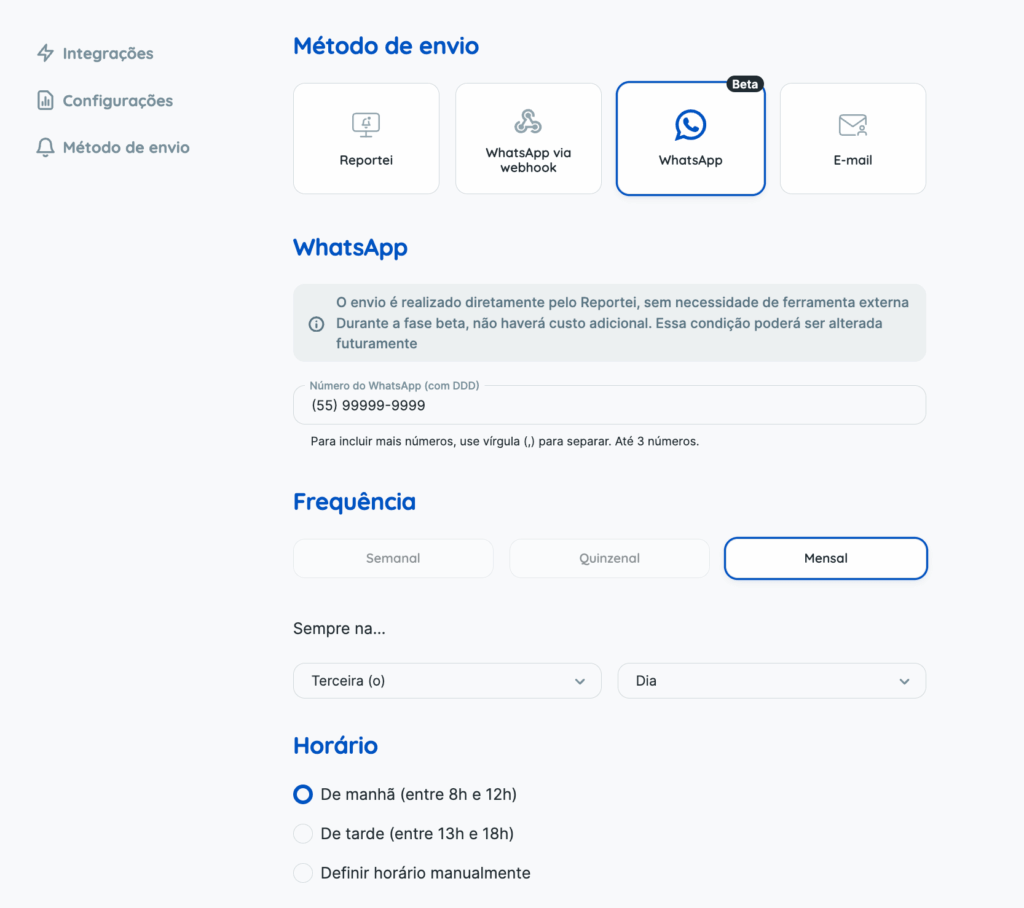
- When creating or editing an automation, select WhatsApp as the delivery method.
- Enter the phone number, including its area code, in the field provided. You can add up to 3 numbers per automation, separated by commas.
- When the automation runs, Reportei automatically sends the message to the configured contacts.
What recipients receive depends on the automation type:
- Report automation: Reportei automatically generates a report and sends a message with a link to view it.
- Summary automation: Reportei sends a summary of the project’s results directly in the conversation, using the metrics configured in the automation.
Stopping notifications: these messages include a “Cancel notification” option. Using it stops all Reportei automation notifications sent to that contact through WhatsApp, not just messages from that particular automation.
💡 During the beta phase, direct WhatsApp delivery is available on all plans at no additional cost. This may change in the future.
2. WhatsApp through a webhook
This option uses an external automation tool, such as Zapier, Make, or n8n. It is useful for custom workflows, integrations with other tools, or cases where you want to control the automation outside Reportei.
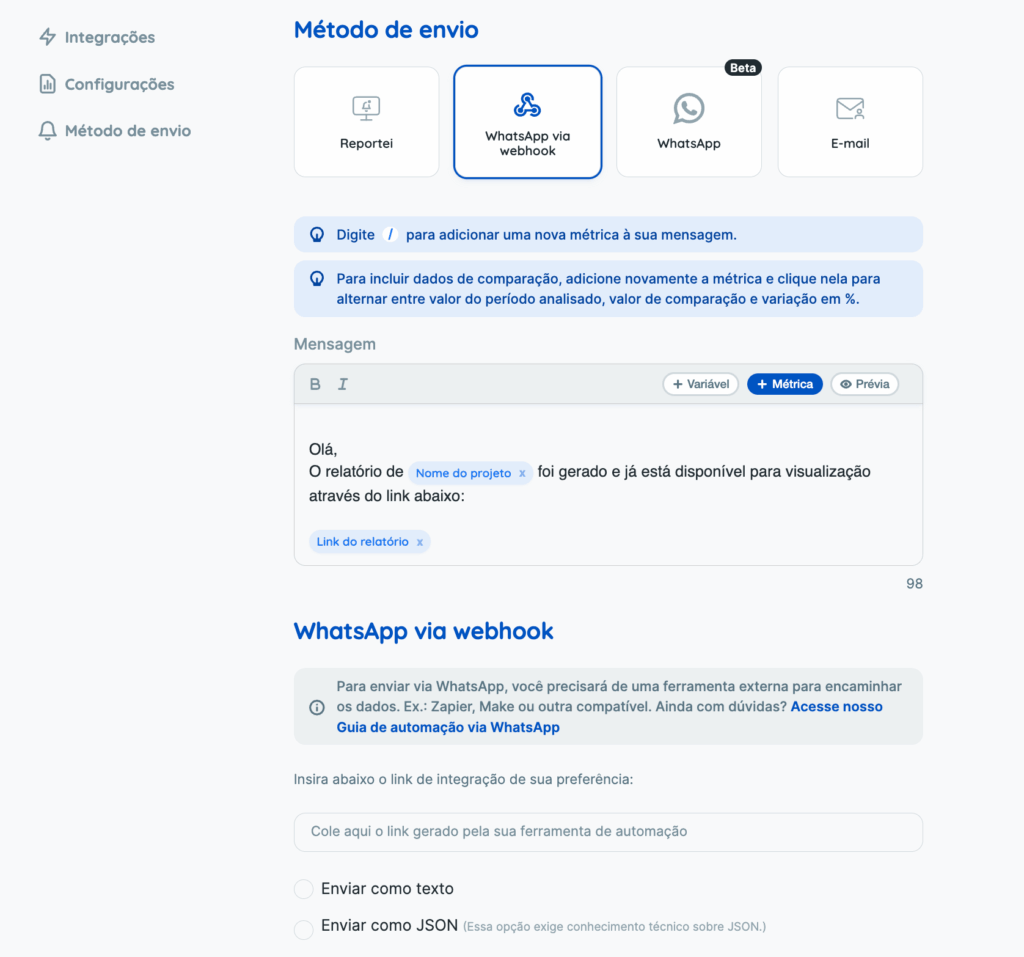
Reportei does not send the WhatsApp message directly in this setup. You define the message and delivery format (Text or JSON), then enter the webhook URL from your automation tool. That tool receives the data and performs the configured action, such as sending a message through the WhatsApp Business API, Twilio, or another connector.
👉 Paste that webhook URL into the field provided in Reportei.
Suggested Zapier setup
- Open Zapier and create a new Zap.
- Choose Webhooks by Zapier as the Trigger, then select Catch Hook. Zapier generates a unique URL; copy it.
- In Reportei, paste the URL into the “Integration link” field.
- Send a test message so Zapier can receive the data.
Then configure the remaining Zap steps to fit your workflow.
Example: Trigger: Webhook (receives Reportei data) → Action: Twilio → Send WhatsApp Message, using the text or JSON fields from Reportei.
Suggested Make setup
- Open Make and create a new Scenario.
- Add the Webhook > Custom Webhook module. Make generates a webhook URL; copy it.
- Paste that URL into Reportei’s integration field.
- Start listening for data in Make (Redetermine data structure), then send a test message from Reportei so Make can capture it.
As with Zapier, configure the following steps to suit your workflow.
Example: Module 1: Webhook (receives Reportei data) → Module 2: WhatsApp through Twilio, sending a customized message using the received data.
Which URL should I paste into Reportei?
Always use the webhook URL generated by your automation tool, such as Zapier or Make.
These are illustrative examples only; they are not working endpoints:
- Zapier:
https://hooks.zapier.com/hooks/catch/123456/abcdef - Make:
https://hook.integromat.com/abcd1234efgh5678
Text or JSON: which should I use?
- Text: sends the message exactly as configured in Reportei.
- JSON: sends structured data so you can separate and manipulate individual fields in your automation. Learn more here.
Note: this option requires an official WhatsApp provider, such as Twilio, 360Dialog, Gupshup, or the official WhatsApp API, connected to your automation tool. This usually involves an additional cost.
Which option should I choose?
- If you want simplicity and do not need external integrations, use WhatsApp directly through Reportei.
- If you need an advanced workflow, other integrations, or control outside Reportei, use WhatsApp through a webhook.
Our Support team is here to help if you have questions! 😊
- Define the message in Reportei and choose the delivery format (Text or JSON).
- Enter the webhook URL from your automation tool in the field provided in Reportei.
- The automation tool receives the data and performs the configured action, such as sending a message through the WhatsApp Business API, Twilio, or another connector.
👉 Paste this integration link (webhook) into the field provided in Reportei.
Webhook setup in practice
Our partner Matheus Palma recorded a tutorial showing how he configured this feature in Make:
We also hosted a session with Gustavo Costa from Breakr, who showed his n8n setup and ways to extend Reportei automations. 🚀
Our Support team is here to help if you have questions!