
To edit a report table, hover over it and click the settings icon:

The editing options open in the left sidebar:

- Number of rows
Enter or select the number of rows to display.
- Table sorting
Choose the sorting criterion from the available options:
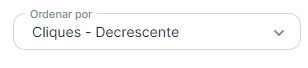
- You can also click a metric directly in the table to sort by it:

- Changing columns and rows
To hide a column, open the “Columns” tab to see the table’s columns:
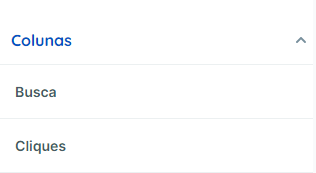
- Find the column and click the eye icon beside its name:
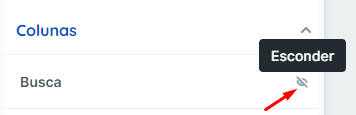
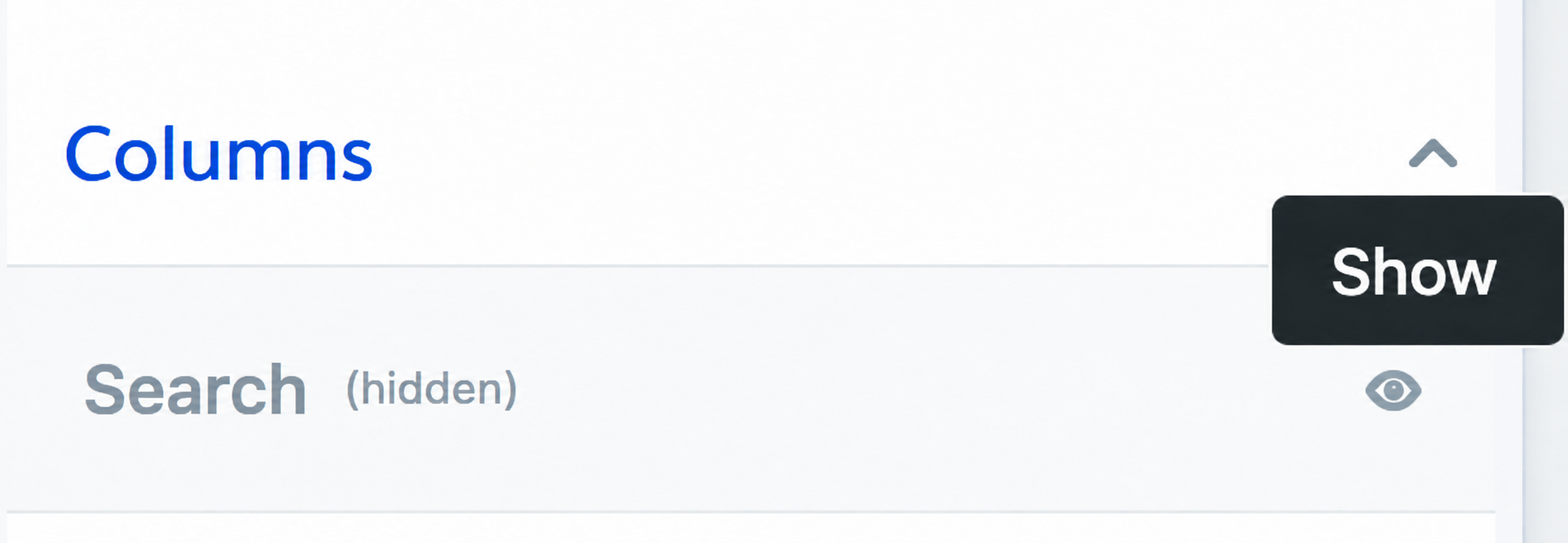
- The column disappears from the table and is listed as hidden. Click the eye icon again to show it.
- Adding columns
Some platforms support additional customization, including adding columns. You can also hide rows and columns and set the number of displayed rows.
Edit the table, open Columns, and click “Add new column”. If the platform does not support this customization, the option will not appear.

Not every metric combination is valid. A new column may not return data for the table’s dimension. If so, a message indicates that the combination is not supported.
- Filtering values
You can filter a table using one of its columns.

Add a filter, choose a column, then choose the filter type: Contains or Does not contain for text, or Greater than or Less than for numeric data.
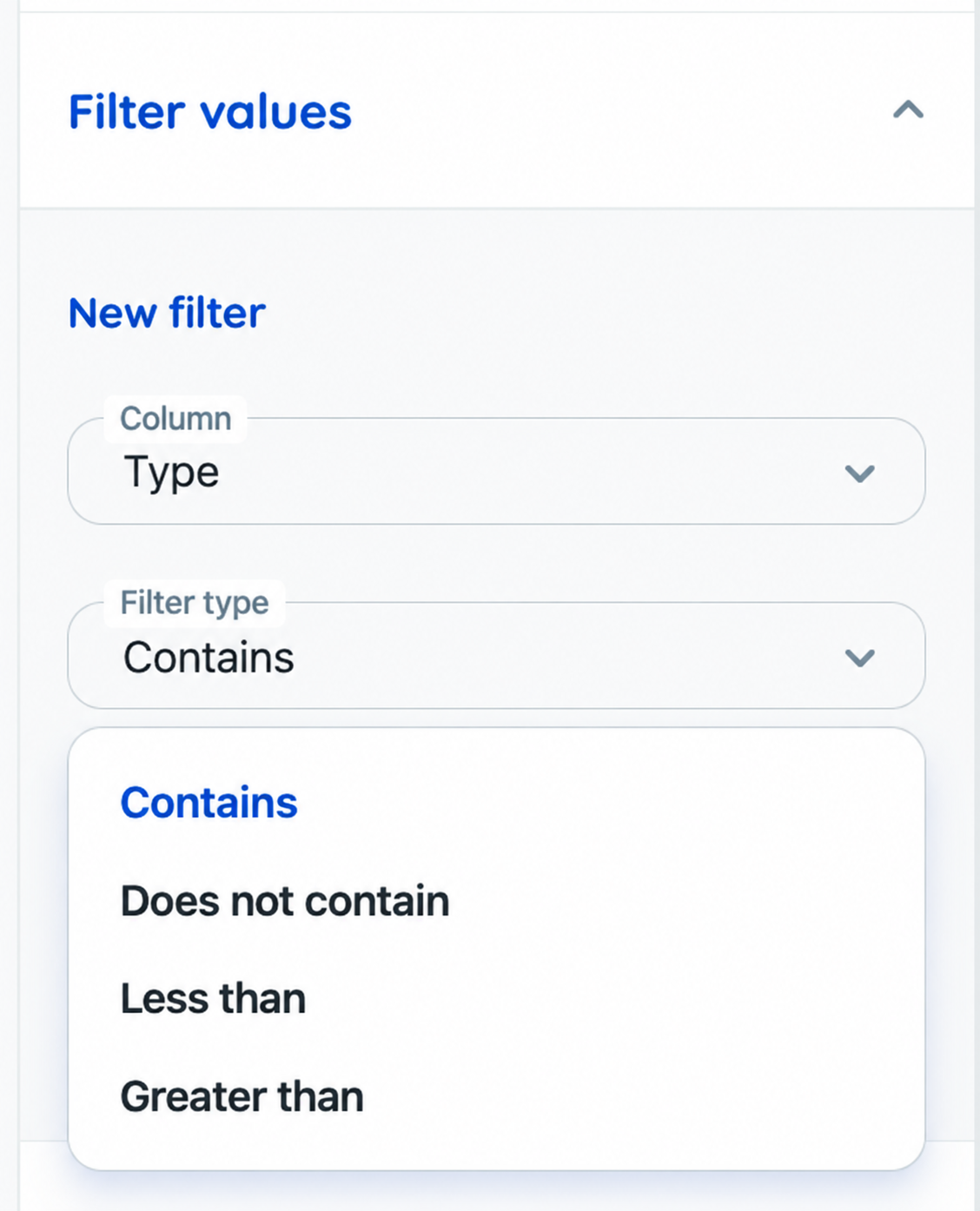
The filter applies only to that table and does not affect other report information.
Learn how to save your report as a template here.
If you have questions, contact our Support team! =)