
This Flux feature is designed for agencies, companies, and franchises that manage multiple projects for the same brand and frequently need to publish the same content to several accounts.
Previously, this was a manual process. You can now replicate an existing post across projects in the same company, reducing the time and effort needed to publish.
How does post replication work?
- First, create the post in a project as usual. Consider using caption variables. Learn how they work here.
- When you click “Schedule”, the scheduling dialog includes the option “Schedule in multiple projects”.
- Select this option, then choose the projects where you want to replicate the post.
- The post will be scheduled in both the original project and your selected projects, keeping the same media, captions, and settings as the original post.
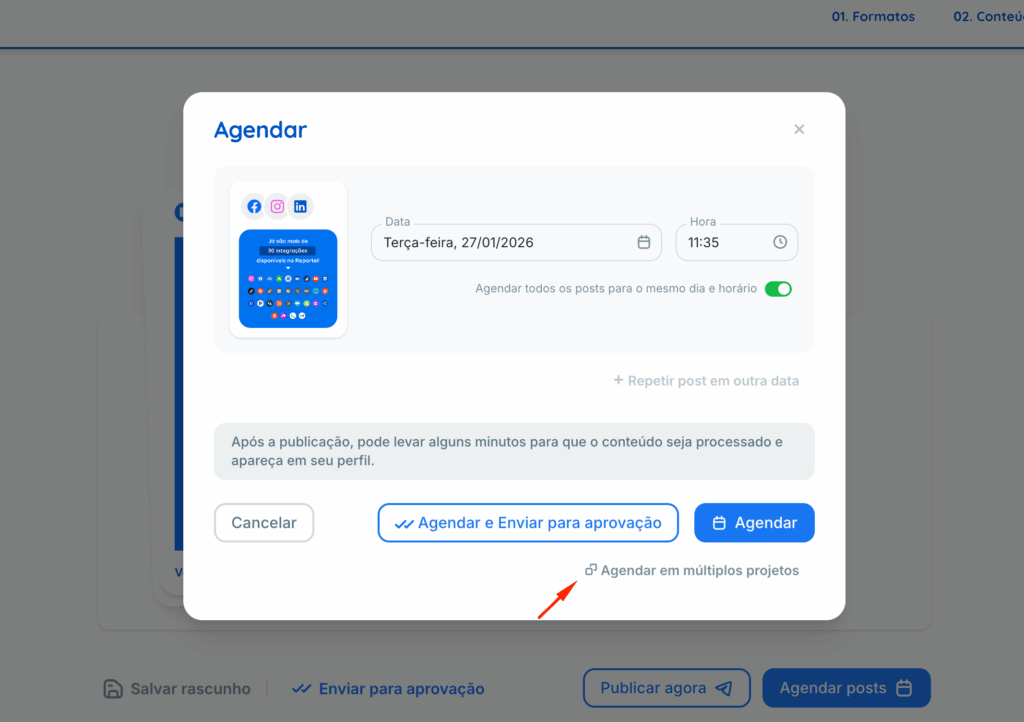
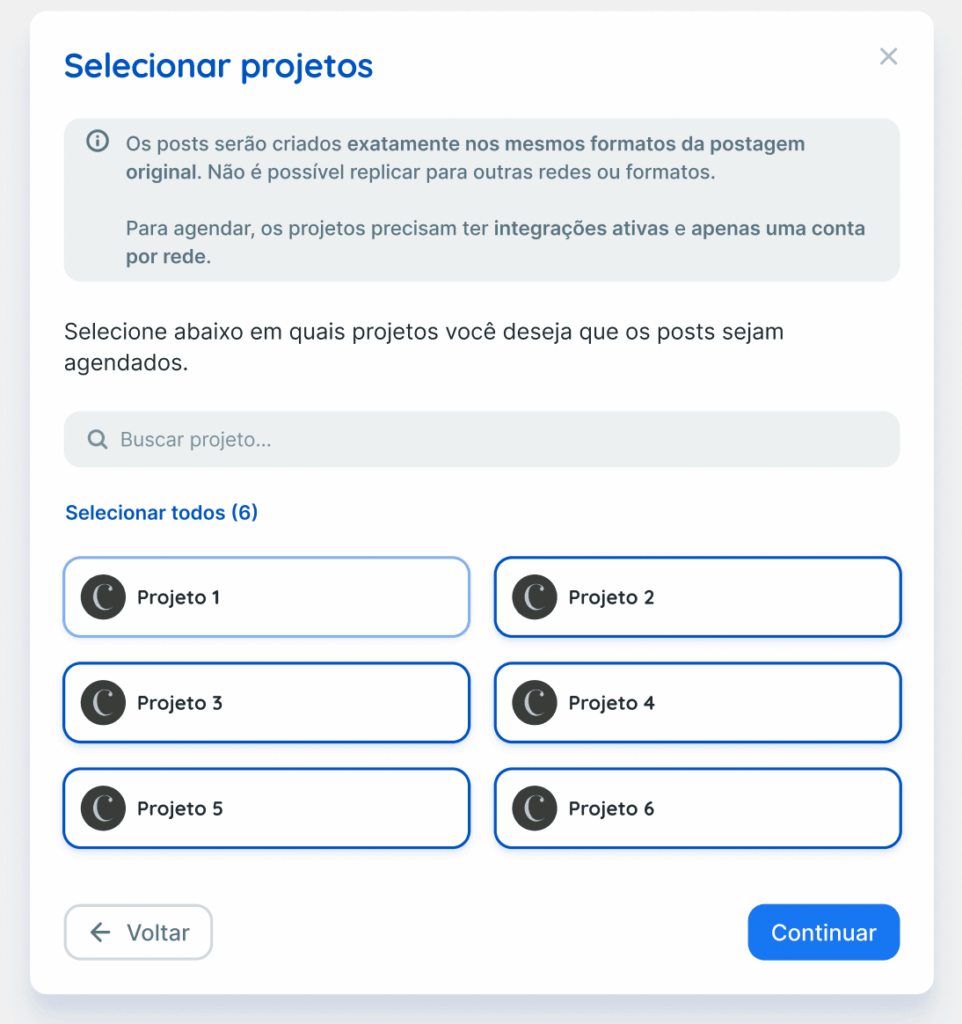
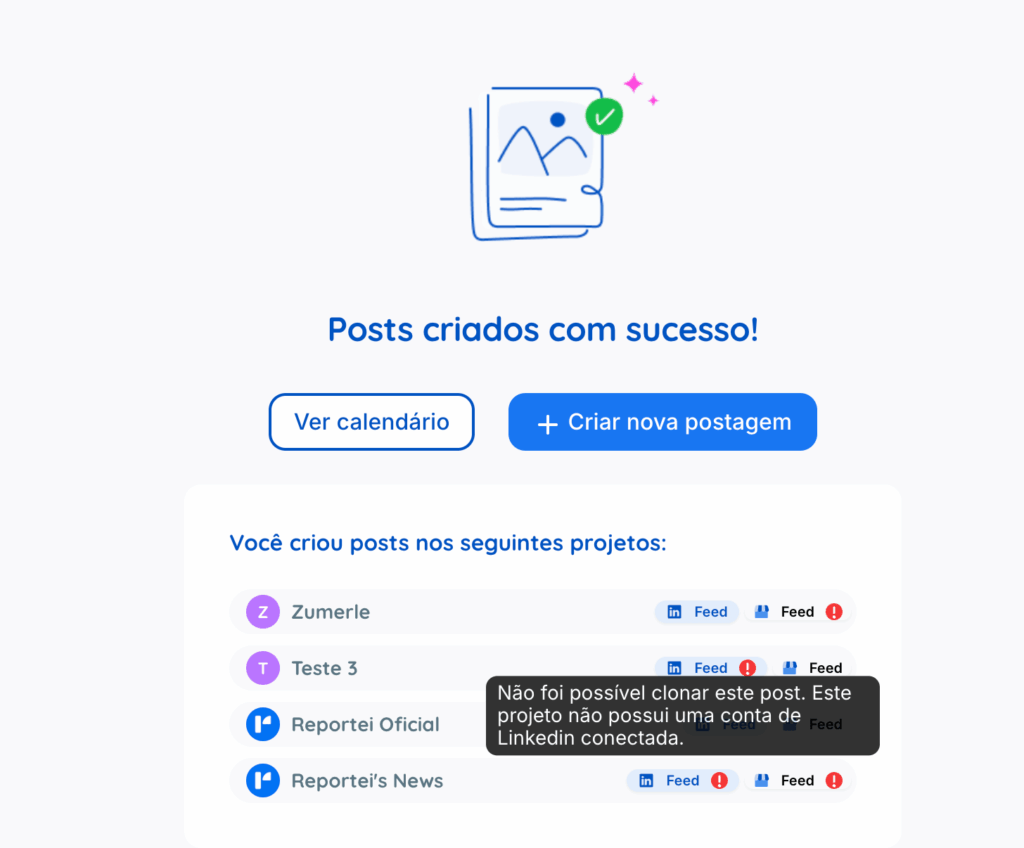
👉 Scheduling across multiple projects is currently available only within the scheduling workflow. You cannot replicate a post at another stage.
Important rules and checks for replicating posts across projects
- Only projects the user creating the post has permission to access will appear in the dialog.
- For a post to be replicated successfully, the project must:
- Have an active integration for the platform used in the post;
- Have only one connected account per platform in each project.
- Have an active integration for the platform used in the post;
- You can replicate a post for up to two additional dates/times, giving a maximum of three separate scheduled times per post.
If a project does not meet these requirements, the post will not be replicated to it. The scheduling completion page will tell you which projects could not receive the post and why.
👉 Important: in this initial version, replication uses exactly the same formats as the original post.
Example:
If a post was created for Instagram Reels and Facebook Feed, it will be replicated only in those formats in the other projects. You cannot replicate it to platforms or formats that were not included in the original post.
If you have questions, contact our Support team through chat! =)