
You can import Canva designs into Flux when creating or editing a post. This saves you from having to export the design, download the file and upload it manually.
How to import designs
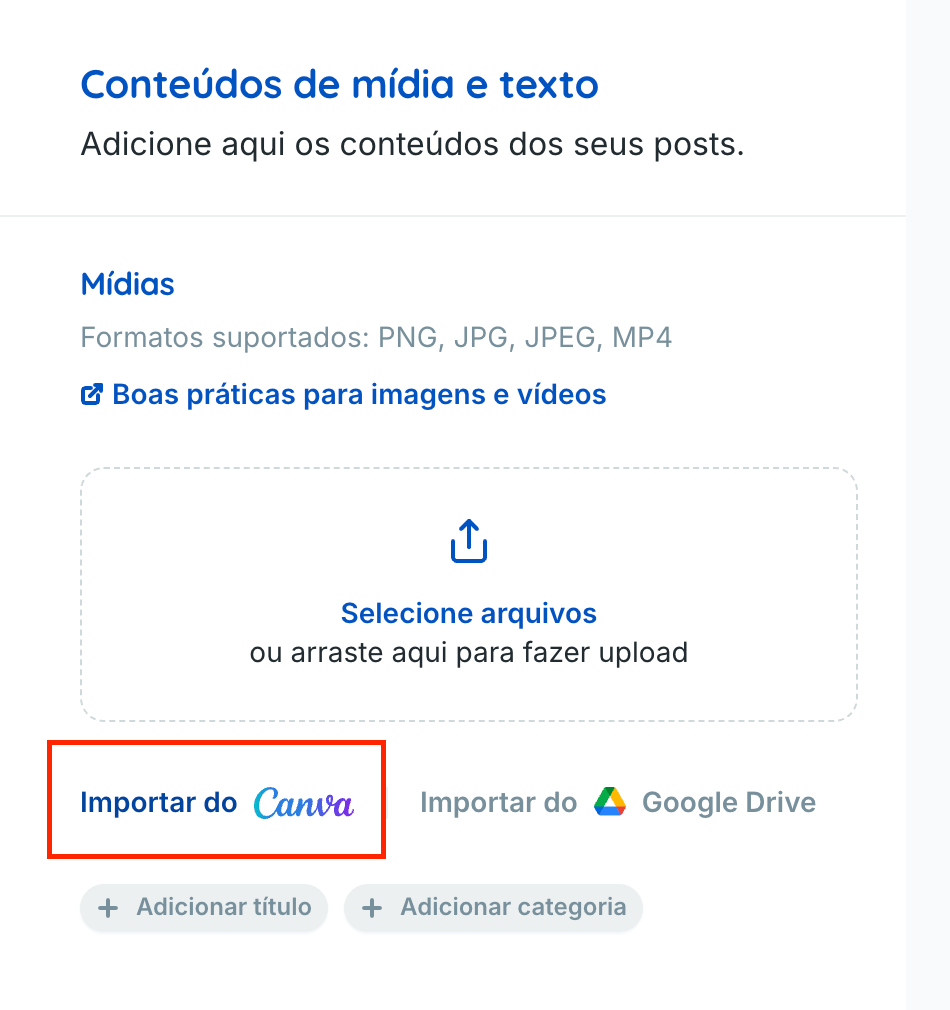
- When creating or editing a post, go to the Media section.
- Click Import from Canva, next to Import from Google Drive, just below the upload area.
- The first time you use this feature, authorize Flux to access your Canva account.
- In the window that opens, choose your designs. They appear from newest to oldest, and you can use the search to find a specific design. You can select several at once.
- Choose an import format for each design.
Import formats
- Image: designs with multiple pages, such as carousels, become one image per page.
- Video: suitable for animated designs.
- PDF: available only for LinkedIn posts, for presentations and documents.
The formats shown depend on the social networks selected for the post. Once imported, the media works like any other media in Flux: you can crop and arrange it as usual.
Things to keep in mind
- The Canva connection lasts while you remain logged in to Flux. If it expires, click Import from Canva again.
- You can only import media. Make any edits in Canva itself.
- Flux imports a copy of the design. Changes made in Canva afterward do not appear in the post.
- The window shows designs created in your own Canva account.
- You can still upload files from your computer or import them from Google Drive.
Frequently asked questions
If I edit the design in Canva, does the post update automatically?
No. Flux stores a copy. Import the design again to use the updated version.
Can I import an entire carousel?
Yes. Choose the Image format, and each page becomes an image.