
Flux now supports dynamic variables in post captions. You can create a standard caption containing variable information, such as a phone number, city, branch name, WhatsApp link, or address, and the system automatically replaces those values for each project.
The feature is designed especially for franchises and businesses with multiple locations, but is available to all users. It reduces repetitive work, speeds up content production, and helps prevent manual errors when personalizing repeated captions.
How to configure variables
You can create variables in Account settings, Project settings, or the variable selector when writing a post caption.
Here is how each option works:
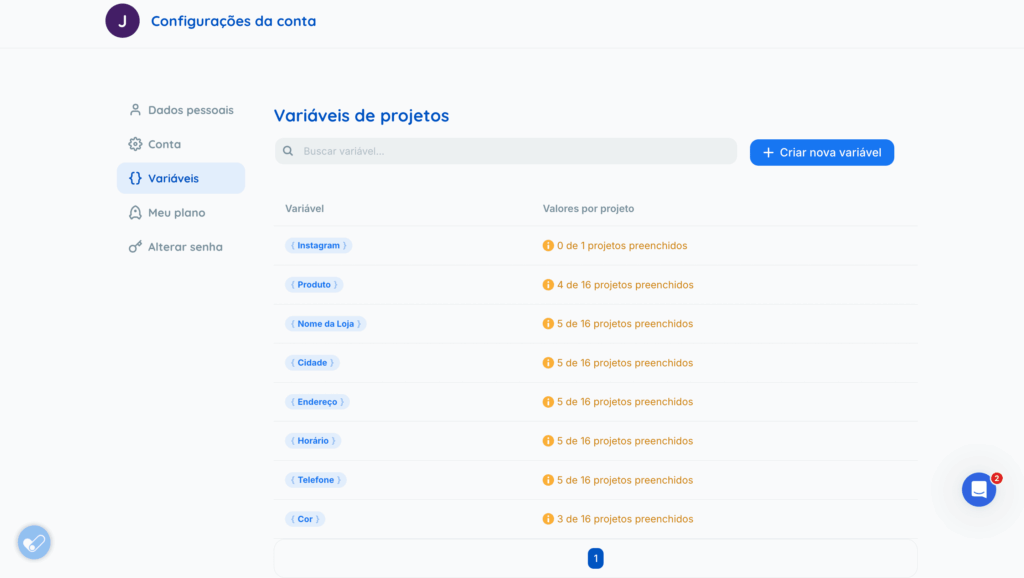
Account settings: create and edit variables for several projects at once. This is the only place where you can delete a variable.
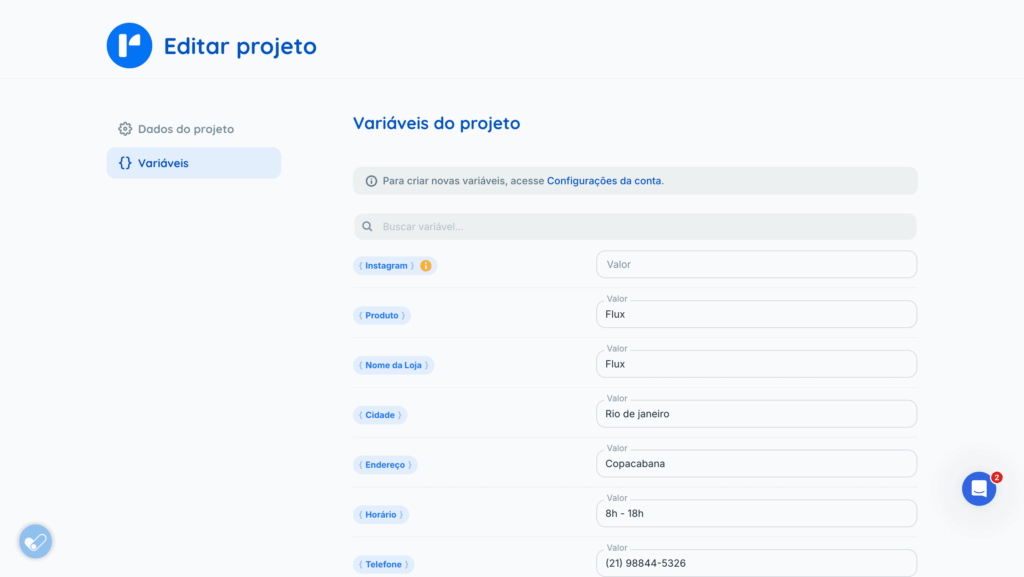
Project settings: create or edit variables for that project.
The variable selector when creating a post: create variables for the current project only.
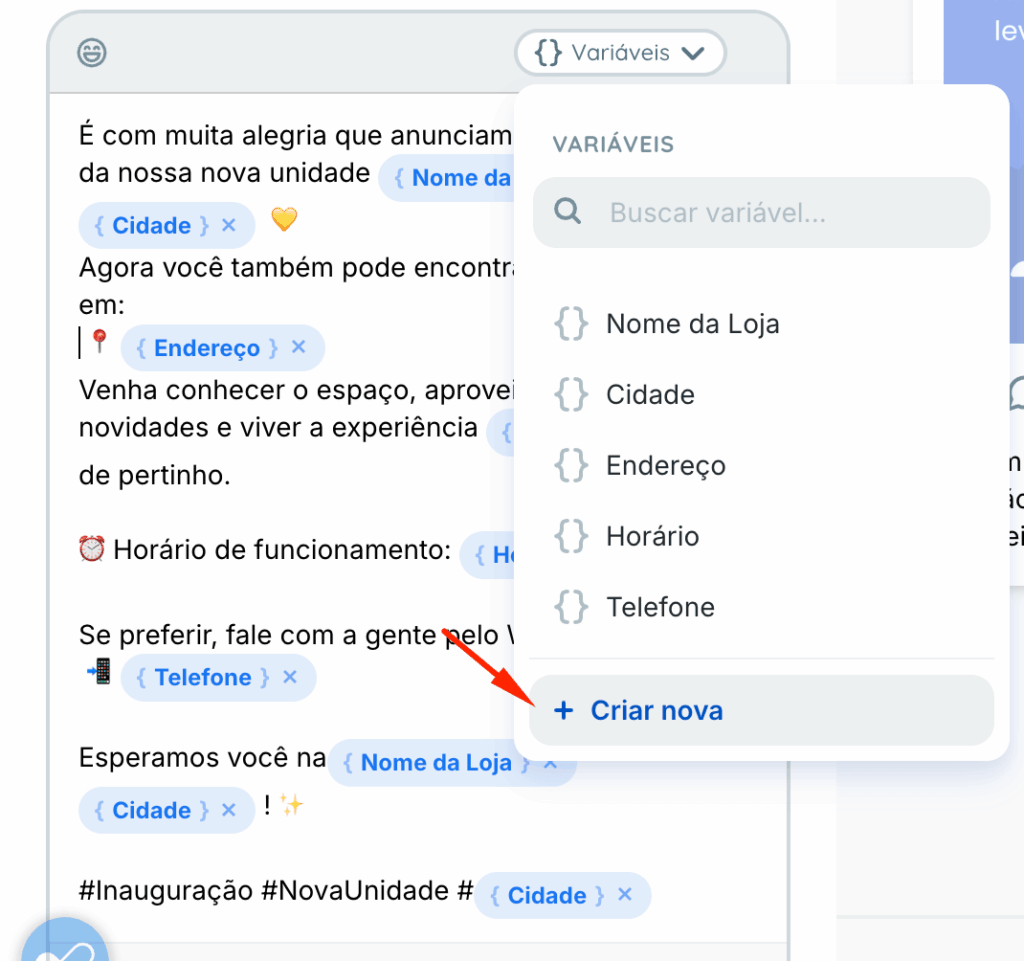
How does the “Variables” option work in the caption editor?
The caption editor includes a “Variables” button for inserting available variables into your text.
This option appears in both the global description and the description for a specific platform or format:
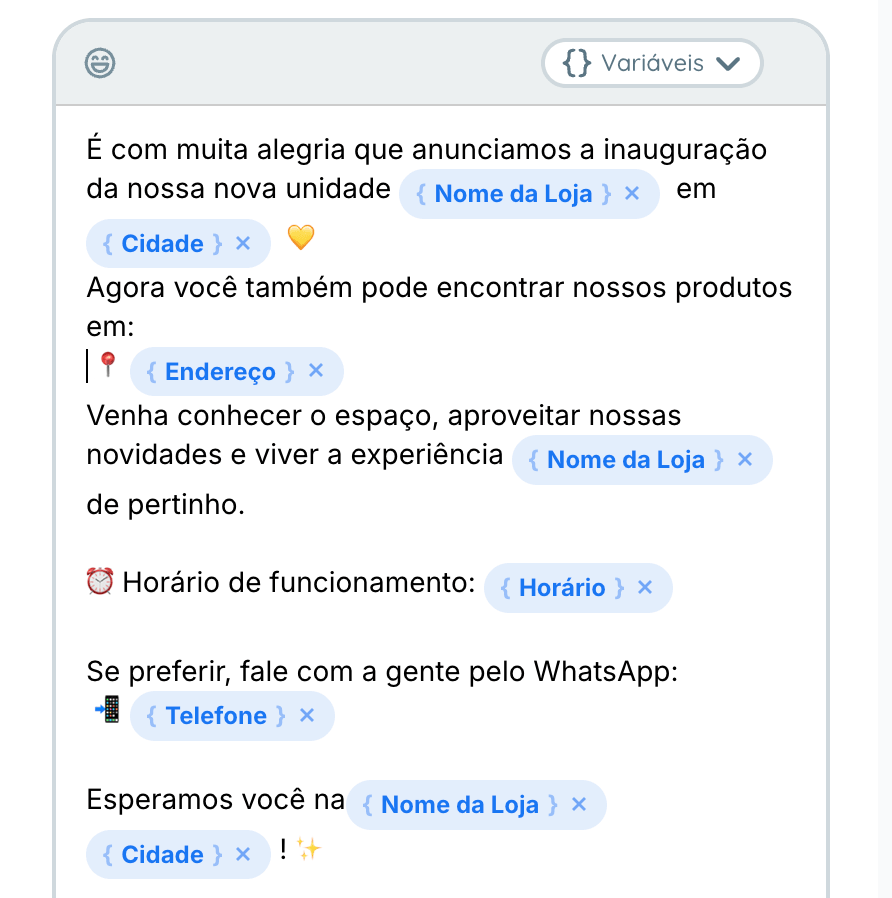
When you select a variable, it is inserted into the caption in the corresponding format. The system replaces it automatically in the preview and when scheduling across multiple projects (another new feature!).
Example: a user writes this caption: “Visit our branch in [city]! Book by calling [phone].”
Final result:
- Project A: “Visit our branch in Belo Horizonte! Book by calling (31) 99999-9999.”
- Project B: “Visit our branch in Curitiba! Book by calling (41) 98888-7777.”
Using variables when scheduling across multiple projects
Flux also supports scheduling across multiple projects.
When you clone a post containing variables, the system automatically replaces their values for the selected destination project. You can therefore replicate a standardized campaign across several branches or franchisees while keeping the correct details for each one.
At the final cloning step, the caption should already show the correct values for the destination project.
What if a project has a variable with no value?
When you select destination projects, the system checks that each one has values for all variables used in the caption.
If a value is missing, you are shown which variables need values and which projects are affected, and asked to fill them in:
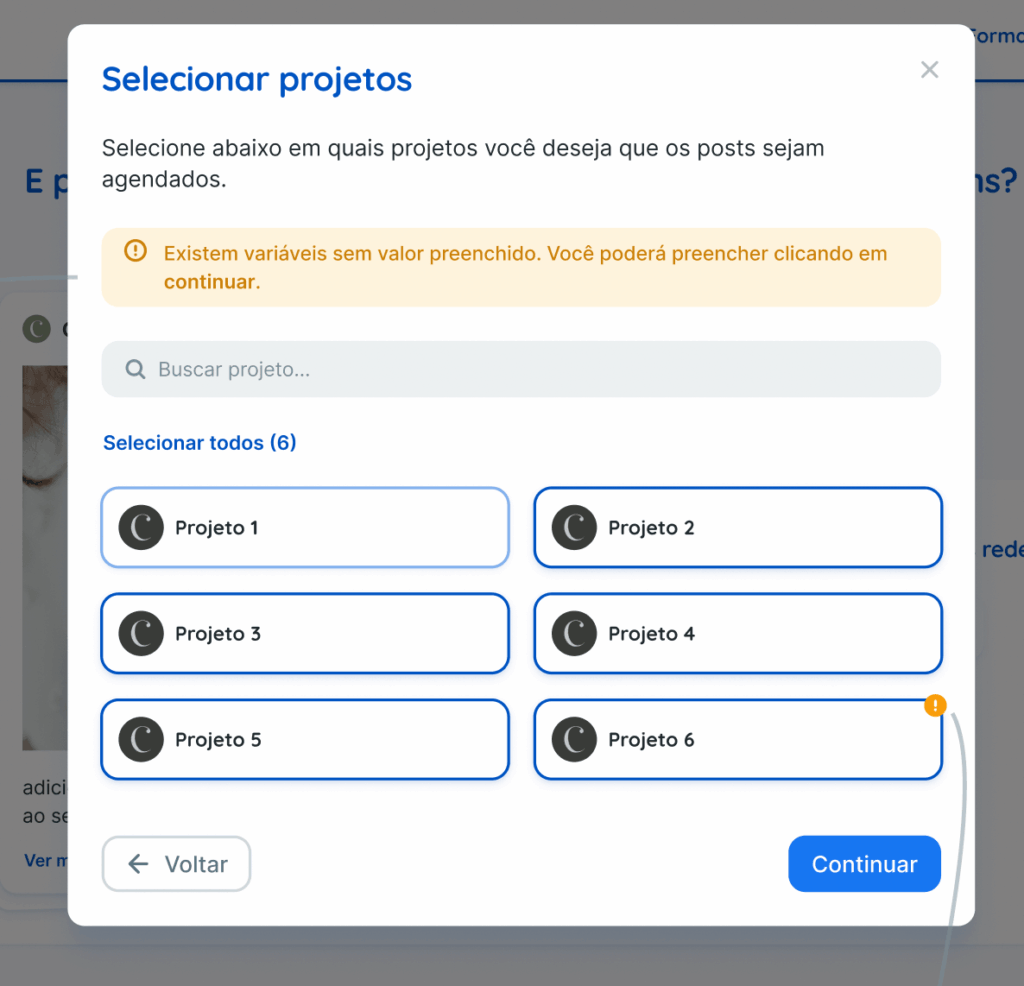
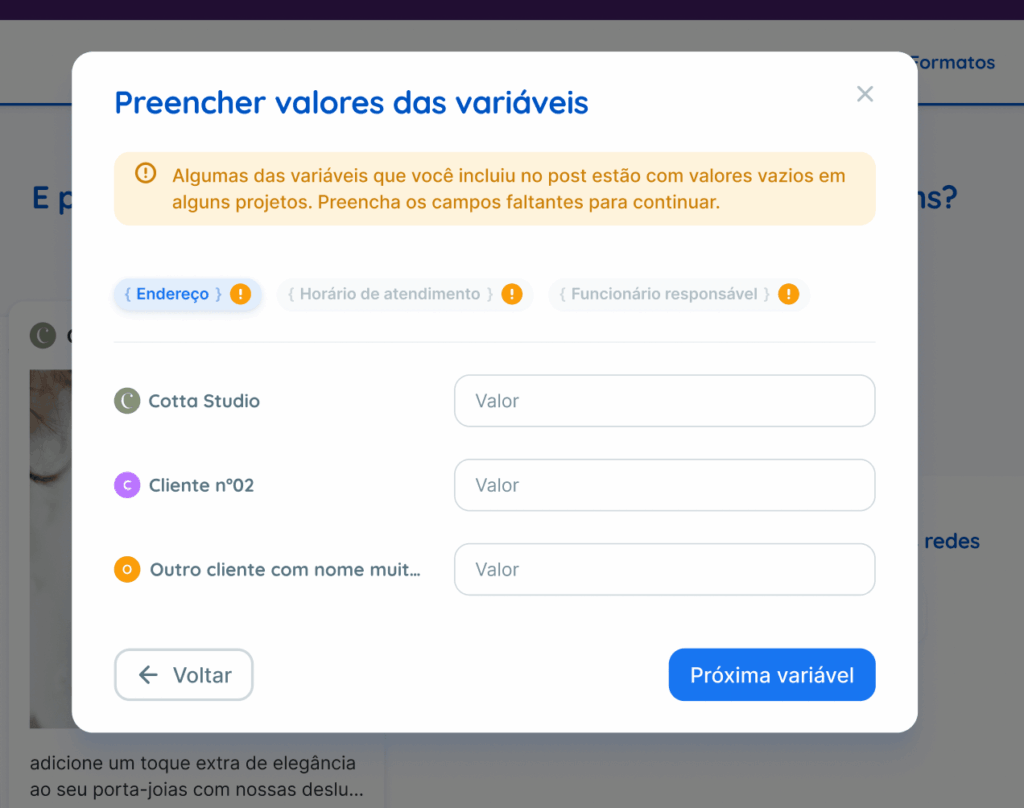
To continue scheduling, you must enter the missing variable values for those projects. Once all values are filled in, you can complete the process:
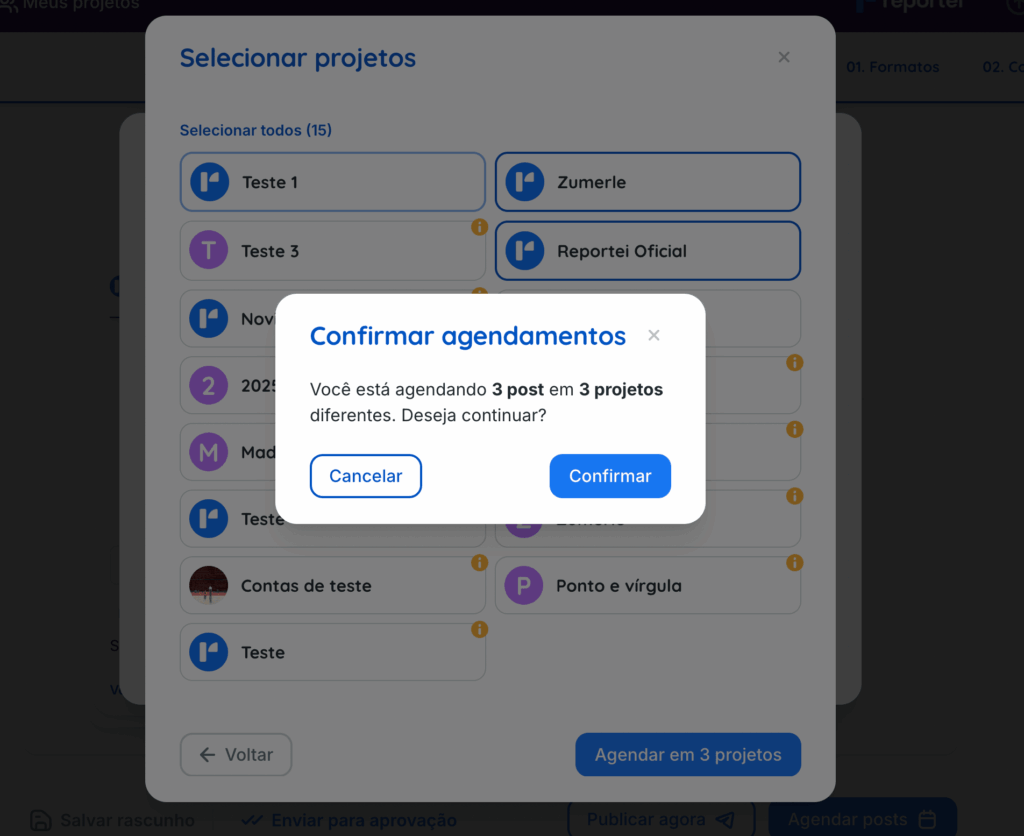
Enjoy the new feature!
If you have questions, contact our Support team through chat. =)