
The Timeline is where you record important client milestones within a project, such as a campaign launch, a strategy change, or a sales record. In addition to writing events manually, you can now add them from two parts of your workflow:
- Report and dashboard metrics, with one click;
- Control goals, which automatically record the result of each period.
👉🏻 Available on plans that include the Timeline.
📌 Save a report metric to the Timeline
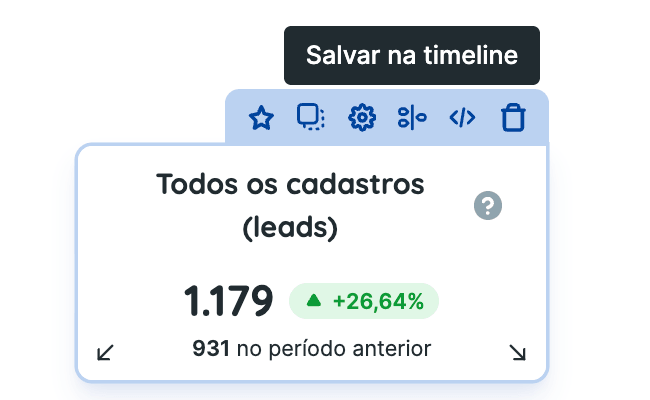
Number metric blocks in reports and dashboards now have a Timeline icon. Hover over a block to see it in the action bar, beside Add to Control.
How to save a metric
- Hover over a number metric block in a report or dashboard and click the Timeline icon.
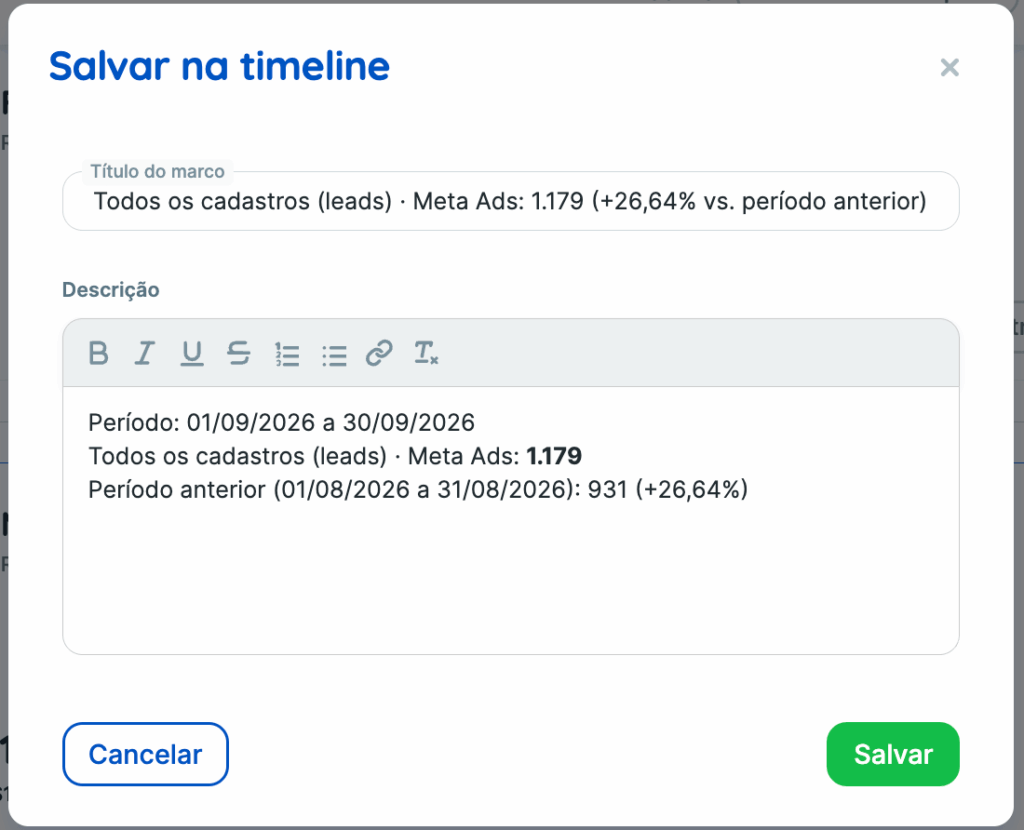
- In the Save to Timeline window, review Reportei’s suggested title and description.
- Edit them as needed and click Save.
You will see Saved to Timeline! with a shortcut to edit the event and add more context.
What Reportei suggests
- Milestone title: the metric name, integration, value, and change from the previous period. For example: “Number of followers · Instagram Business: 107 (-0.93% vs. previous period)”.
- Description: the analysis period and metric value, plus the previous period’s value and dates when a comparison is available.
You can freely edit the title and description before saving. Add context that only your agency knows, such as the reason for a spike or decline.
The event is added to the project’s Timeline using the report period’s end date. Its icon identifies the source integration, such as Instagram or Google Ads.
👉🏻 Currently, only number metric blocks can be saved to the Timeline. This includes calculated metrics and numbers in Custom Blocks. Charts, tables, and text blocks do not have the icon.
🎯 Automatically save Control goal results
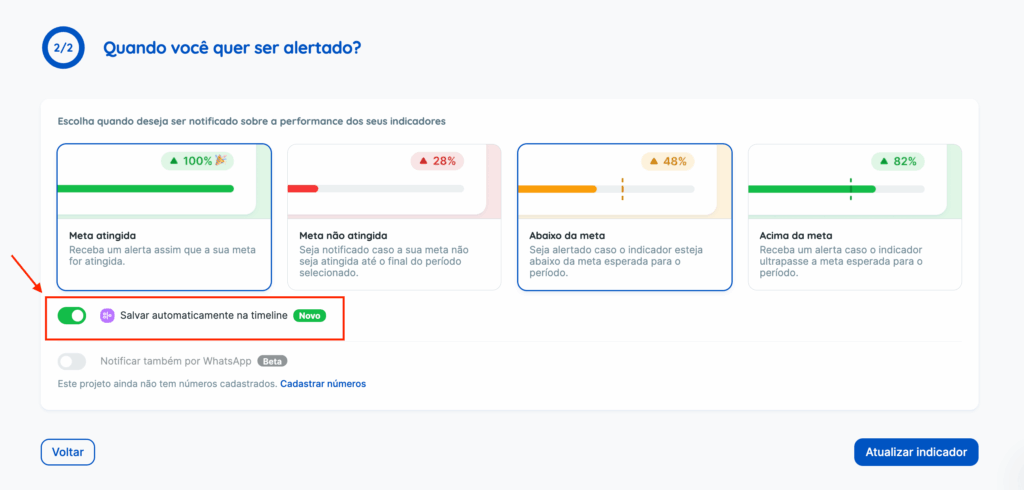
When creating or editing a goal in Control, the Alerts step includes Automatically save to Timeline.
When enabled, Reportei creates a Timeline event with the result whenever the goal’s period ends, without manual action.
What the event includes
- Title: the outcome and tracked metric. For example: “Goal reached: Number of followers · Instagram Business”;
- Result: the final value reached during the period;
- Goal: the target value and progress percentage;
- Period: the start and end dates of the completed period.
Possible outcomes
- Goal reached or Goal not reached: for goals that aim to reach a value;
- Limit reached or Limit not reached: for goals that aim to stay below a value, such as a cost-per-click ceiling.
The event icon indicates the outcome: a rocket for a positive result and a warning symbol for a negative one.
When the event is created
Reportei records the result at the end of the period, whether the goal was reached or not. If a monthly goal is reached on the 15th, you receive a Goal reached alert that day. The Timeline event is created after the month closes, with the outcome, final value, target, progress, and period dates.
The event is created during the first data collection after the period changes, so it may take a few hours to appear. Its date is always the period’s last day.
👉🏻 For a new goal, this option is enabled by default if your plan includes the Timeline. Existing goals keep it disabled. Edit each existing goal and enable the option to start recording its results.
Important points
- Each goal period generates only one event. Processing the same period again does not duplicate the result in the Timeline.
- Nonrecurring goals also record their result when their period ends.
- Goals without updated data do not generate an event because there is no result to record.
- Alerts triggered during a period—Goal reached, Below target, and Above target—remain notifications only. They do not create Timeline events.
- Events created through either method are regular Timeline events. You can edit, delete, and share them by email or WhatsApp as usual.
- Suggested text follows the account’s language and date-format settings.
Frequently asked questions
Can my client save milestones from a shared report link?
No. The icon appears only inside Reportei, not on the shareable link.
Why did I reach the goal without seeing a Timeline event?
Reportei records the result only after the period ends. Reaching it during the period triggers an alert; the event is added once the period closes.
Will my existing goals record their results?
Only after you enable the option. Existing goals keep Automatically save to Timeline disabled until you edit them.
Can I save a chart or table to the Timeline?
Not yet. Only number metric blocks currently have the icon.