
If you generated a report for specific campaigns or pipelines, or are adding a breakdown through the Campaigns block while editing a report, here are the available editing options.
These features work with every platform that supports reports based on a breakdown:
- Meta Ads: Campaigns
- Google Ads: Campaigns
- LinkedIn Ads: Campaigns
- TikTok Ads: Campaigns
- Pinterest Ads: Campaigns
- Twitter Ads: Campaigns
- RD CRM: Pipelines
- HubSpot CRM: Pipelines
- Pipedrive: Pipelines
- Hotmart: Products
- Phonetrack: Units
Available editing options:
1. Add multiple campaigns
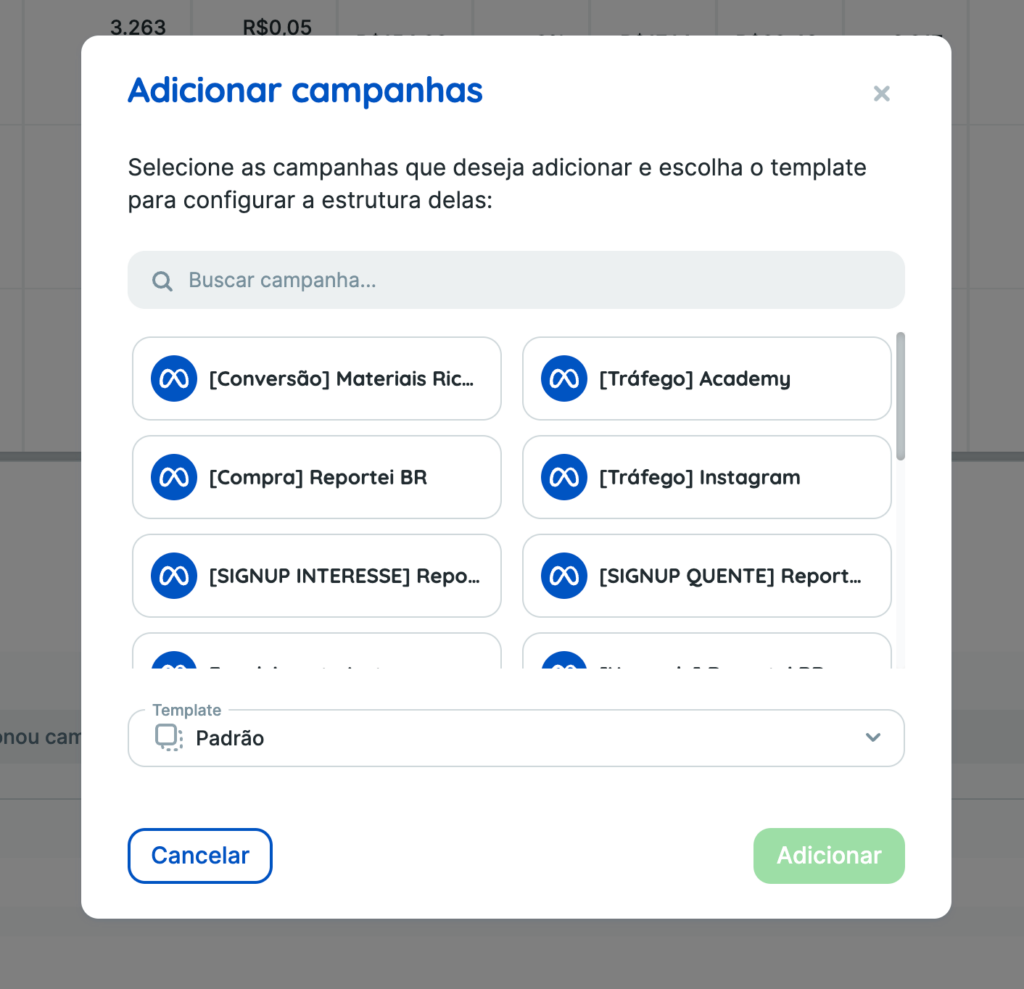
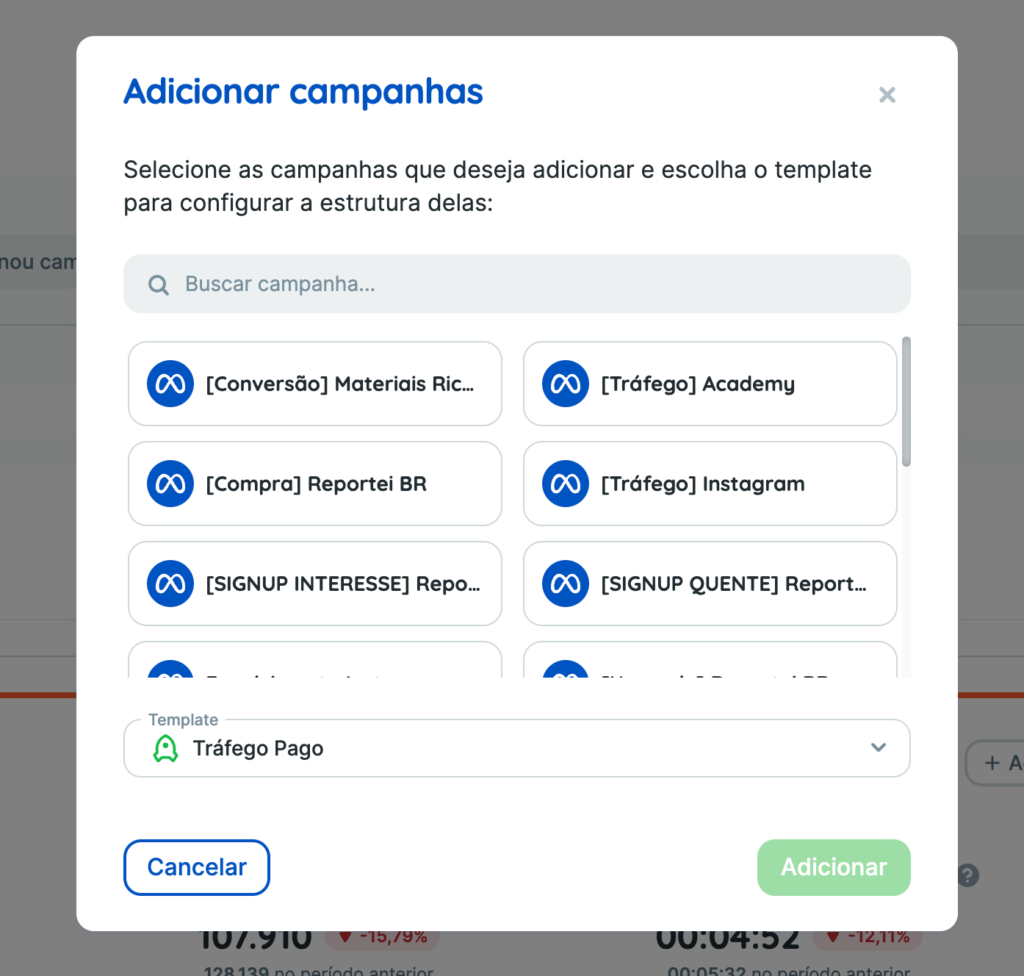
When adding campaigns, you can select several campaigns to add at once. Select the campaigns you want, then add them:
2. Add campaigns from a template
This option adds campaigns to your report or dashboard using the campaign layout from one of your report/dashboard templates.
The template originally used to generate the report is selected by default. Open the selector to see every template in your account:
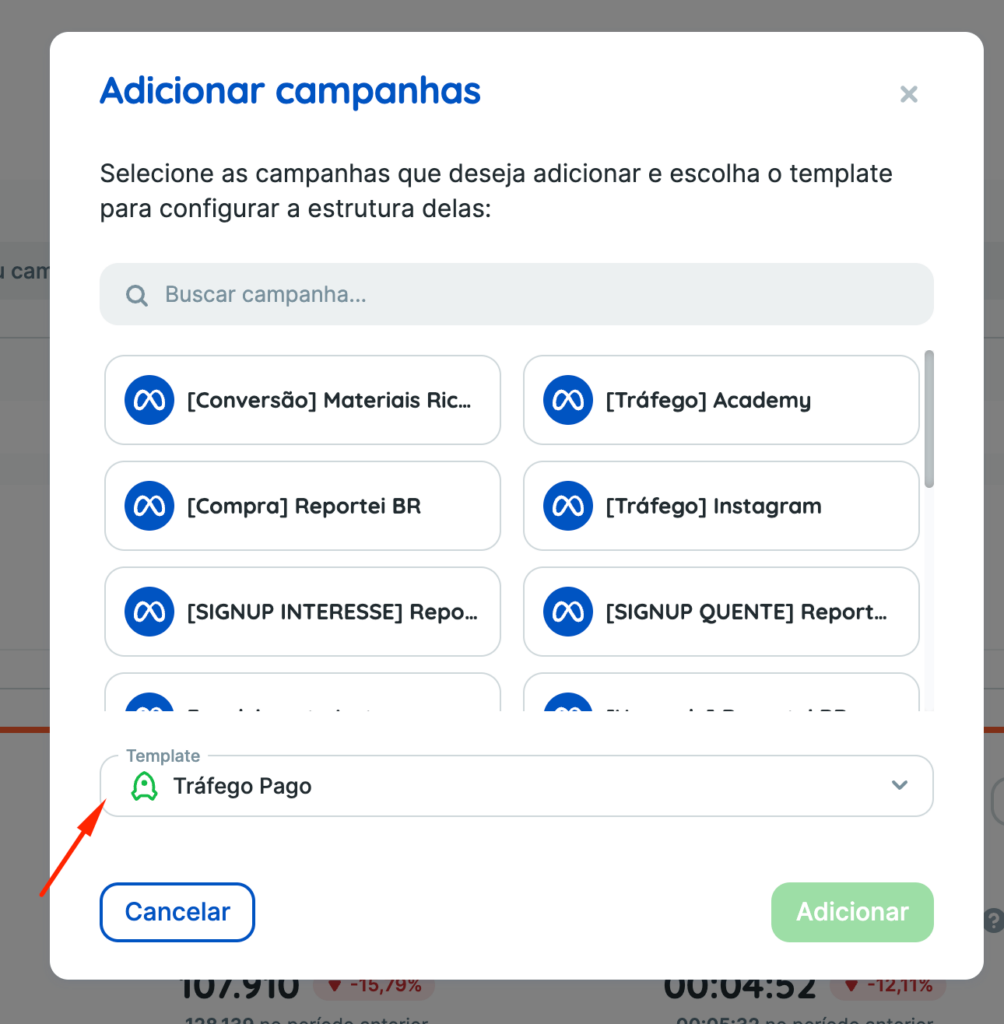
If a template contains several campaigns with different layouts, new campaigns use the layout of the first campaign in the selected template.
Example: imagine a template named “Meta Ads” with three campaigns:
Campaign 1: Layout X
Campaign 2: Layout Y
Campaign 3: Layout Z
If you select 5 campaigns for a new report and choose the “Meta Ads” template, all 5 will use Campaign 1’s layout (Layout X).
Regardless of how many campaigns you select, or how many campaigns and layouts the template contains, new campaigns always use the layout of the first campaign in that template.
👉 In other words: the first campaign in the selected template determines the layout.
3. Duplicate campaigns
The duplicate option lets you replicate campaigns already in the report, making it easier to add and customize campaigns using existing layouts.
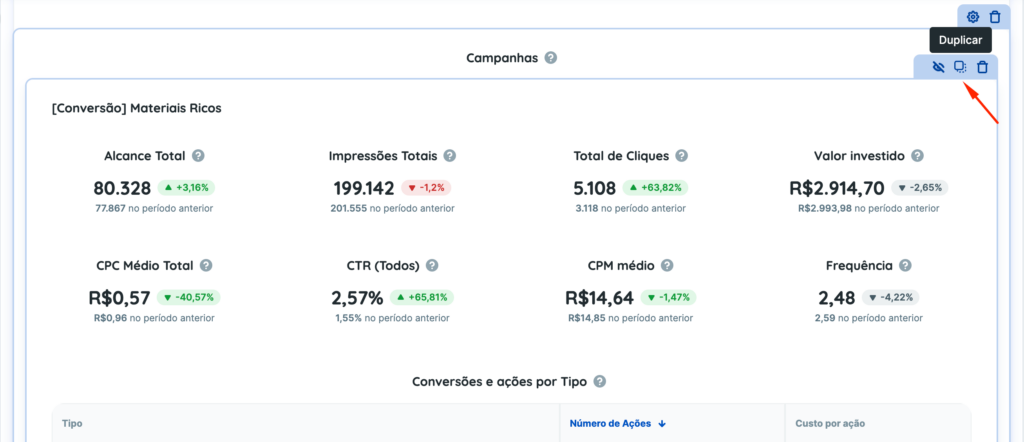
Once you have a campaign in a report, the “Duplicate” option appears in its upper-right corner alongside the other options:
Click it to open a dialog with the “Duplicate layout” option. The campaign you clicked is selected by default, but you can choose another one from the selector at the bottom of the dialog:
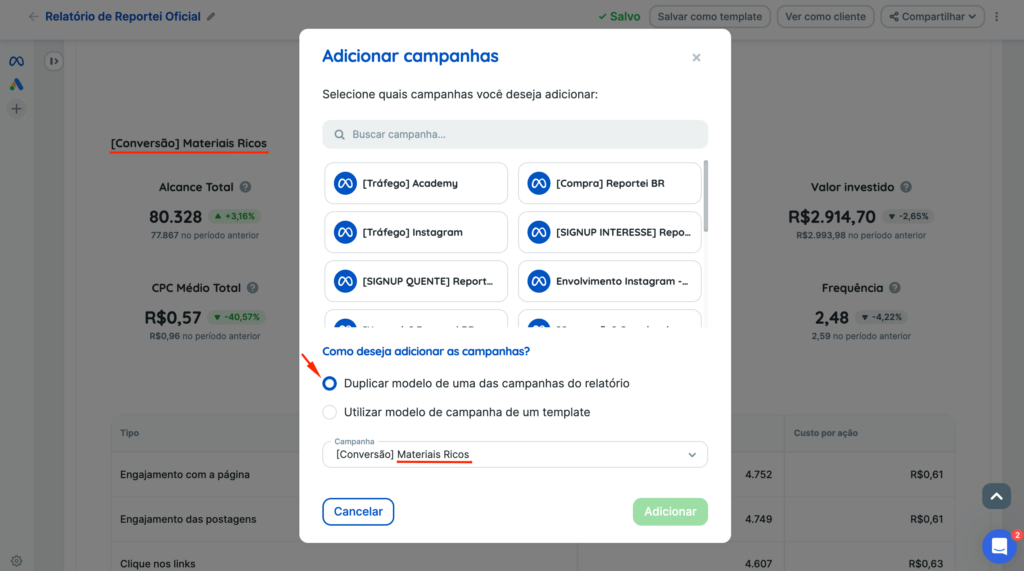
The same options are available when you click “Add campaigns”. The main difference is that the template option is selected by default when adding campaigns:
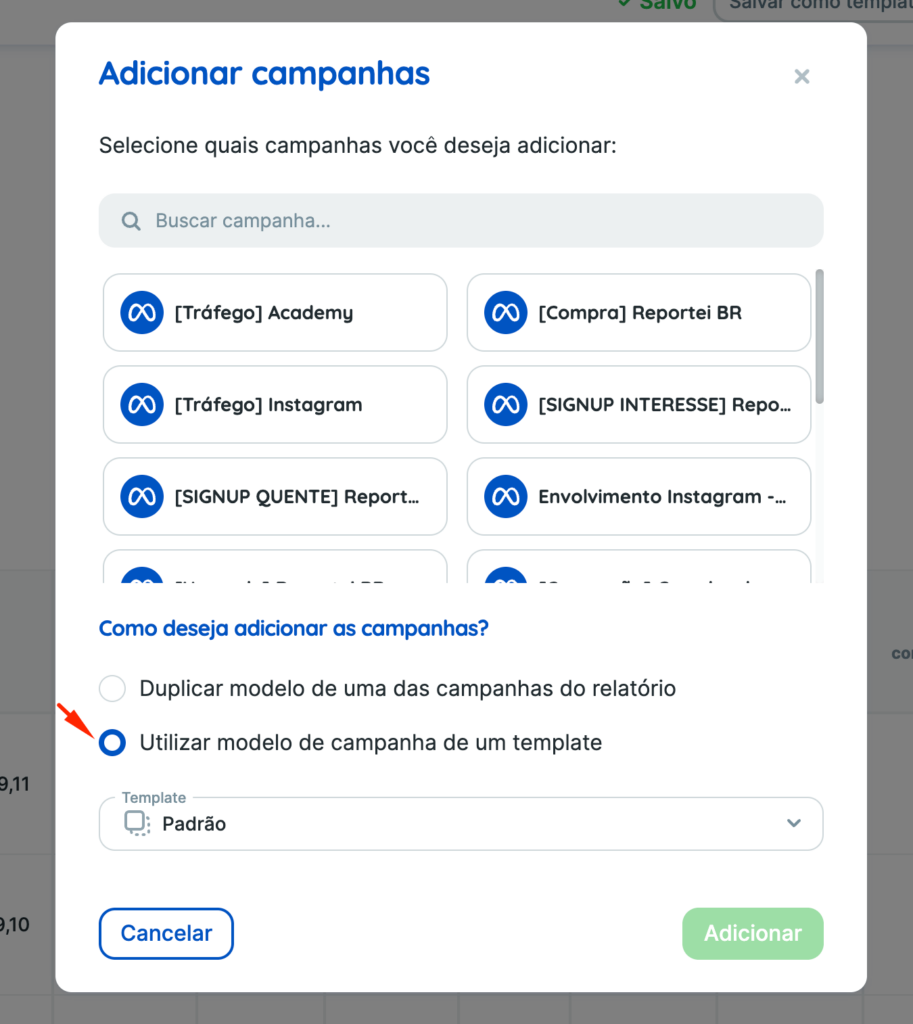
Note: if the report does not yet contain a campaign, clicking “Add campaign” only offers the option to choose a template for the new campaign.
If you have questions, contact our Support team! =)