
If Meta Ads metrics in Reportei differ from what you see in Ads Manager, check the following:
First, make sure the report or dashboard’s analysis period matches the date range selected in Ads Manager.
For example, this report covers August 1–31, 2024.

Select the same date range in the campaigns section of Ads Manager:

Also check that you connected the correct ad account.
The Meta Ads API returns the account name as displayed in Ads Manager. In this report, for example, the connected ad account is named “Reportei”:
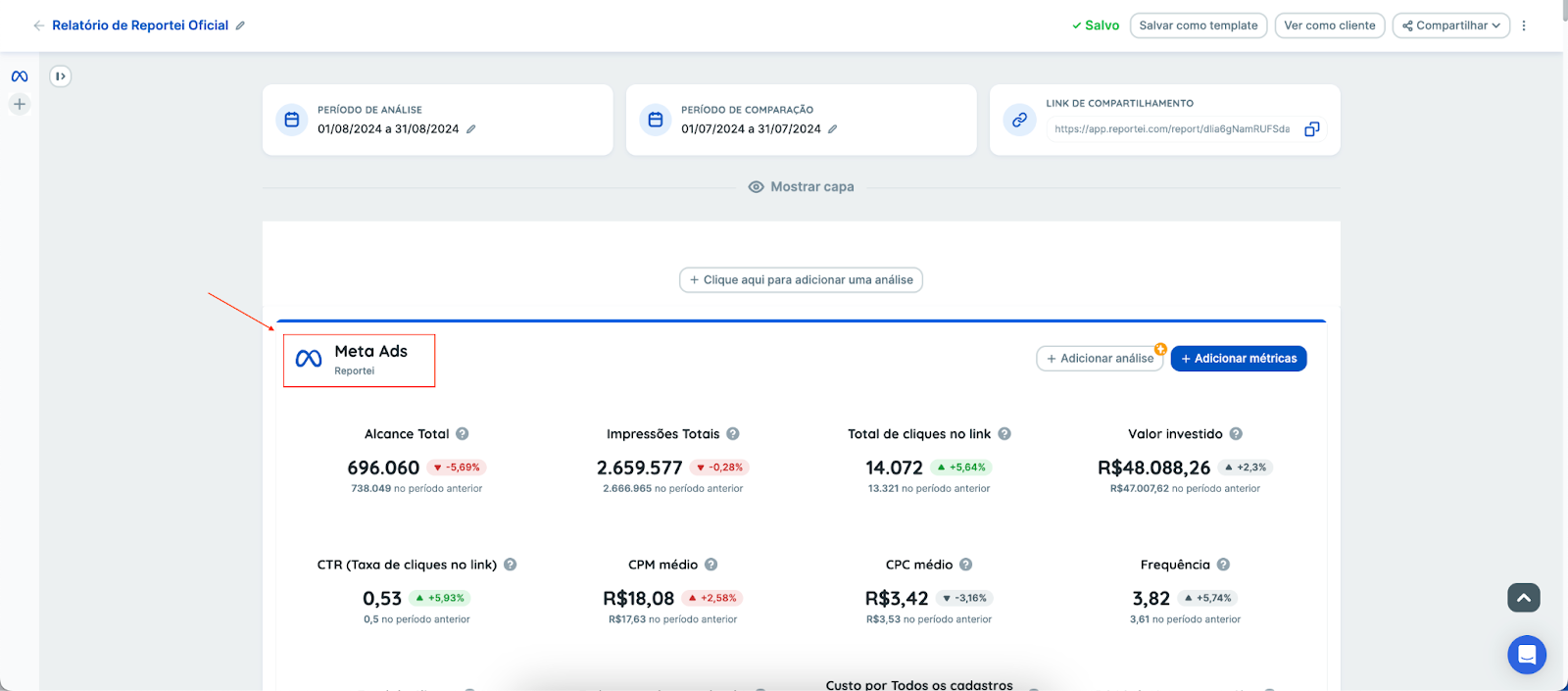
Compare the data against that same account, with the same name, in Ads Manager:

If the account and date range match but the numbers still differ, check how the report or dashboard is structured.
In Reportei’s default template, for example, the first metrics describe the entire ad account, not just selected campaigns.

To compare an individual campaign with Ads Manager, use its Campaign block, which shows the campaign name and its metrics. You can also use the Highlighted Campaigns table within the whole-account data.
How do I add campaigns?
Click Add campaign in the Campaigns block at the end of the Meta Ads report section. If the block is missing, click Add metric, search for “Campaigns”, and drag the block into the report or dashboard.
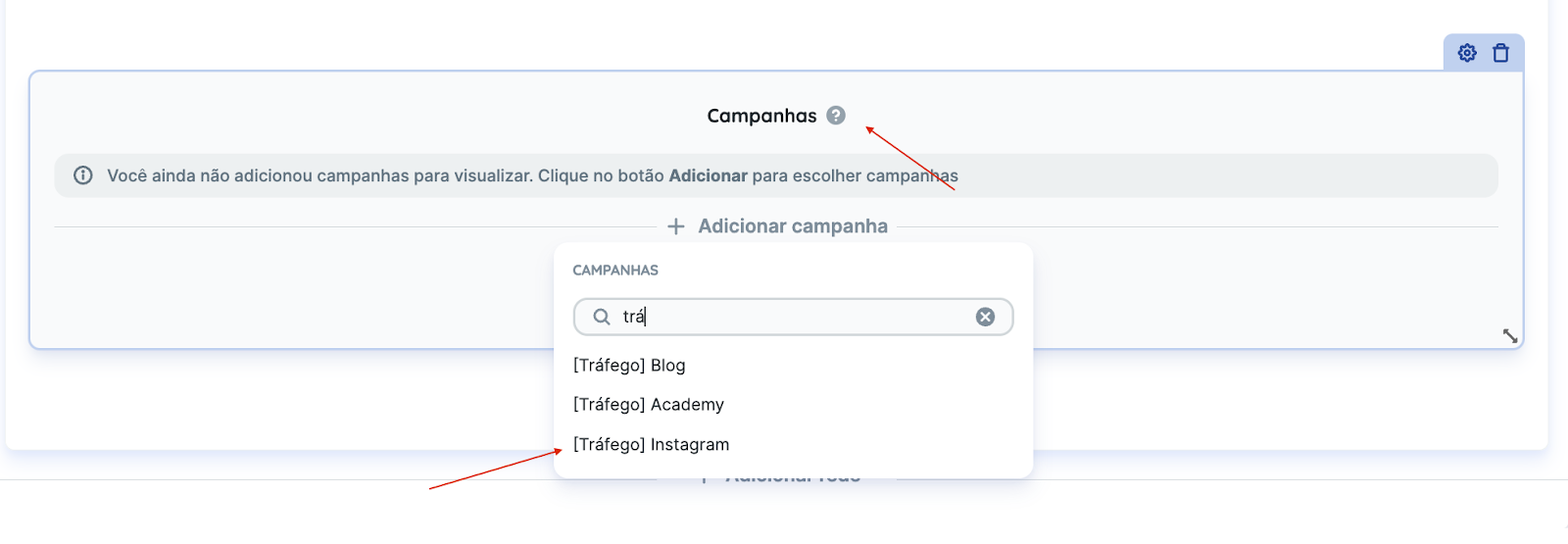
The selected campaigns’ data will appear. Any metrics added inside a campaign’s block refer only to that campaign or those campaigns.

If the data still does not match after these checks, contact our team through chat.
If you need help while checking, contact our Support team! =)