
Yes. You can remove metrics, change their order and resize them to build the report you need.
Open the report in editing mode. Hover over a metric to show its dotted outline and controls:
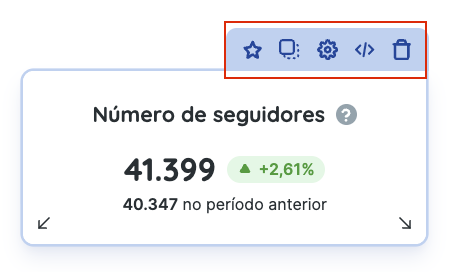
- ✯: Highlight the metric.
- □: Duplicate the metric.
- ⚙︎: Configure the metric.
- </>: Generate a widget query for the API.
- 🗑: Remove the metric.
To resize a metric, drag the arrows at its bottom corner. To move it, click and hold the metric widget, then drag it to a new position.
The default report includes the main available metrics. To add others, click Add metric at the top of the relevant platform section. Select a metric, hold it and drag it to the desired position.

You can also select a platform from the report’s left sidebar:

This opens the available metrics panel. Under predefined metrics, drag the widget into the corresponding platform section of your report:
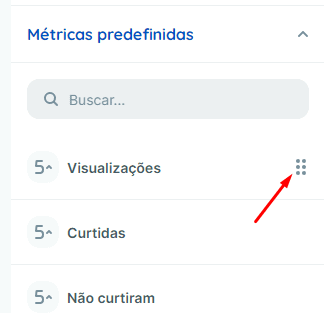
Once you finish editing, save the report as a template so you can reuse the layout for future reports.
Learn how to save and use templates.
If you have any questions, contact our support team.