
Want to create a Reportei report automatically whenever you add or update a Google Sheets row? Pluga lets you configure this automation in a few minutes without writing code.
This automation is useful for marketing teams and agencies managing multiple projects that need to generate consistent reports quickly from their tracking spreadsheets.
Before you start
Make sure you have active accounts with Pluga, Reportei, and Google Sheets.
For this integration, you need:
- An existing Google Sheets spreadsheet
- A Reportei API access token (instructions below)
- A Reportei project with its integrations connected
Step by step
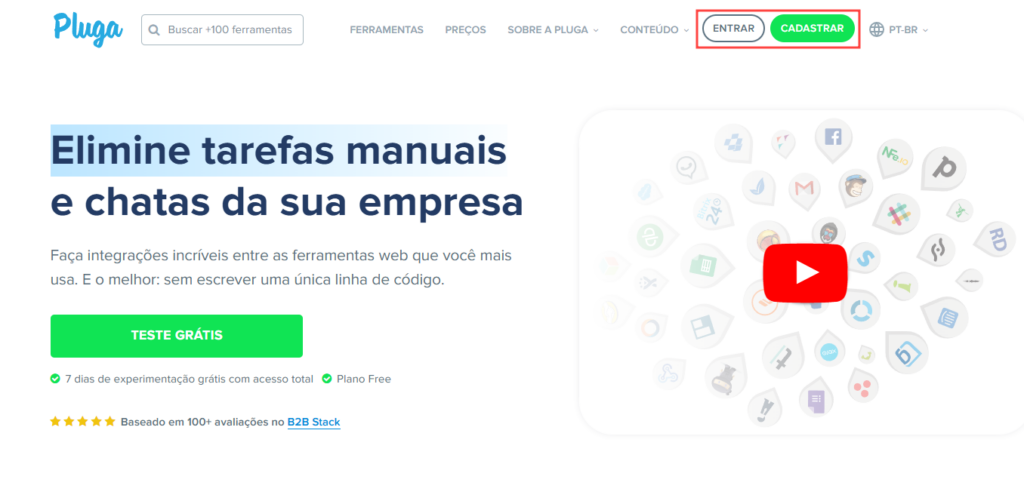
1. Open Pluga and click “Sign in”, or “Sign up” if this is your first visit
2. Select the tools
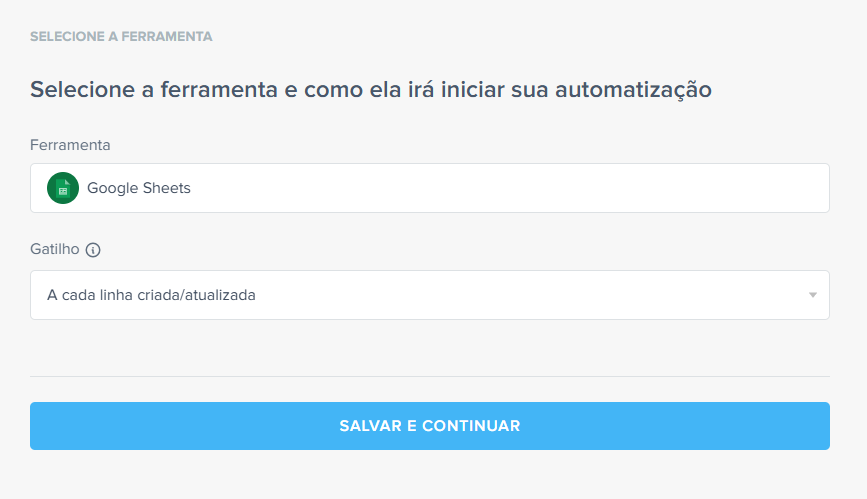
On Pluga’s home page, click “Create automation”. Choose Google Sheets as the source tool and select a trigger:
New row added: when a new Google Sheets row is created
Each row created/updated: whenever a row is created or updated
For this example, choose “Each row created/updated” to capture both new rows and updates.
3. Connect your Google Sheets account
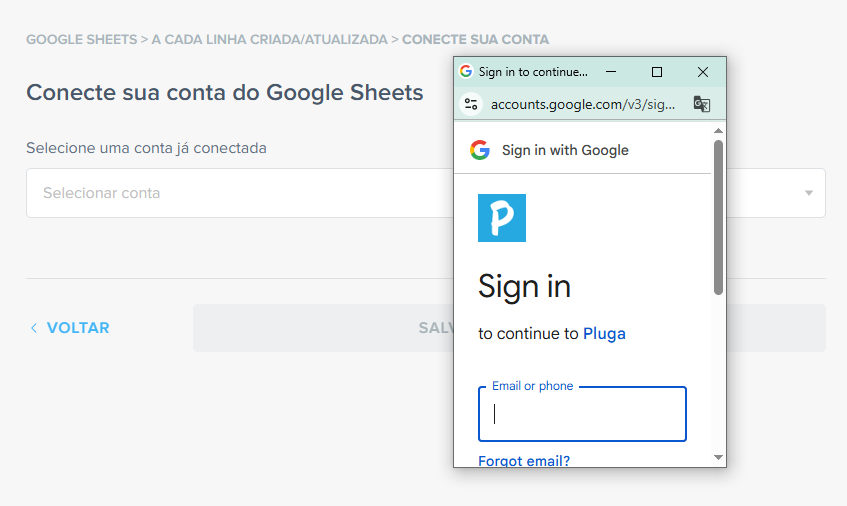
Click “Connect new account” and authorize Pluga to access your Google Sheets spreadsheets. You can manage these permissions at any time.
4. Configure the Google Sheets options
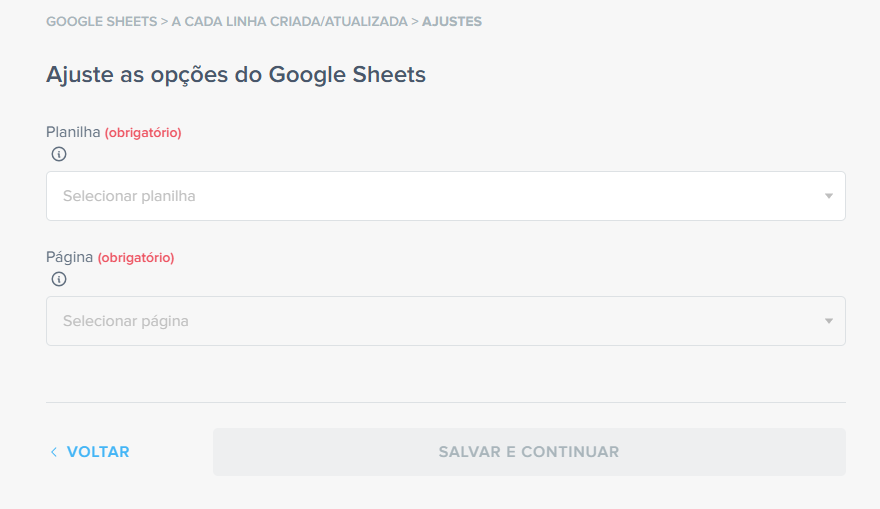
Select the spreadsheet and worksheet tab to monitor. Pluga will trigger report creation when a new row is added or an existing row is updated.
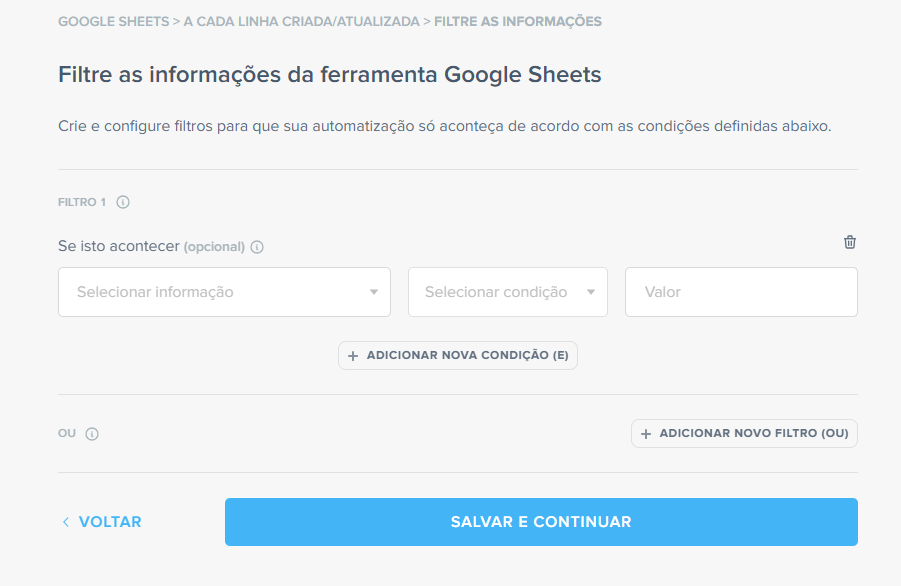
5. Apply filters if needed
Use filters to create reports only in specific situations, such as when a column contains a certain value or a project’s status changes.
If you do not need filters, click “Save and continue”.
6. Select the destination tool
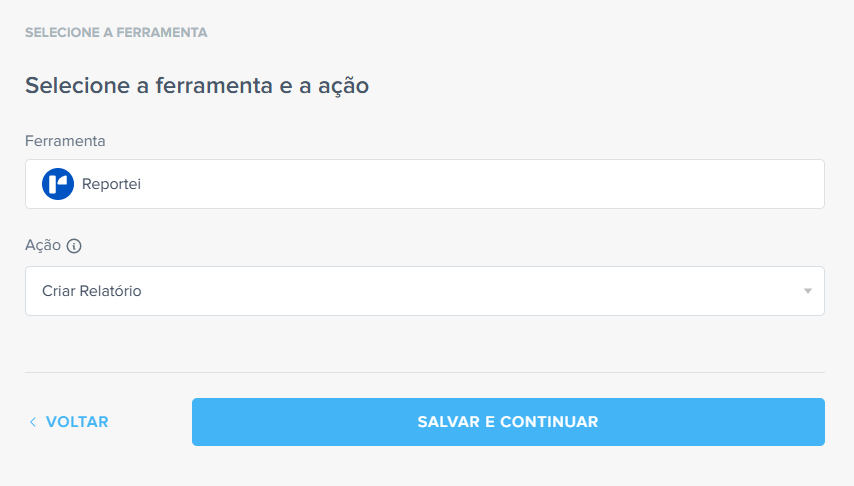
Select Reportei as the destination tool and choose “Create report”.
7. Connect your Reportei account
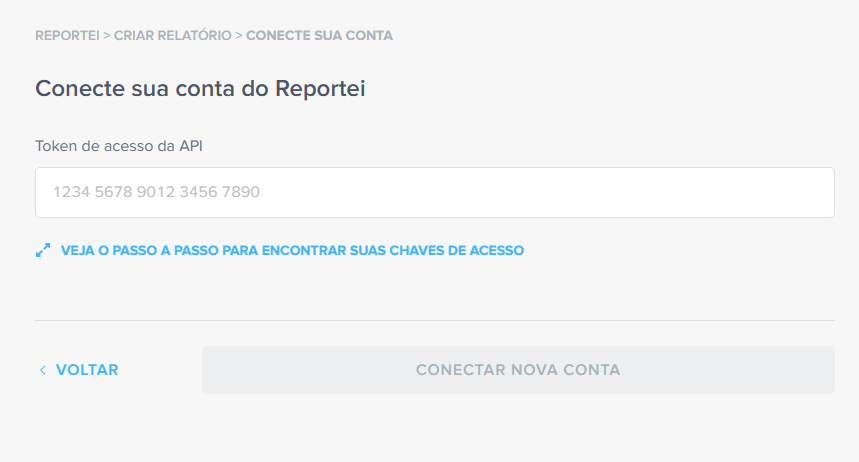
To connect Reportei to Pluga, you need the API access token from your Reportei account.
If you need help finding it, click “See the step-by-step guide to finding your access keys” on the Pluga screen. Paste the token into the field provided and click “Connect new account”.
8. Configure the Reportei options
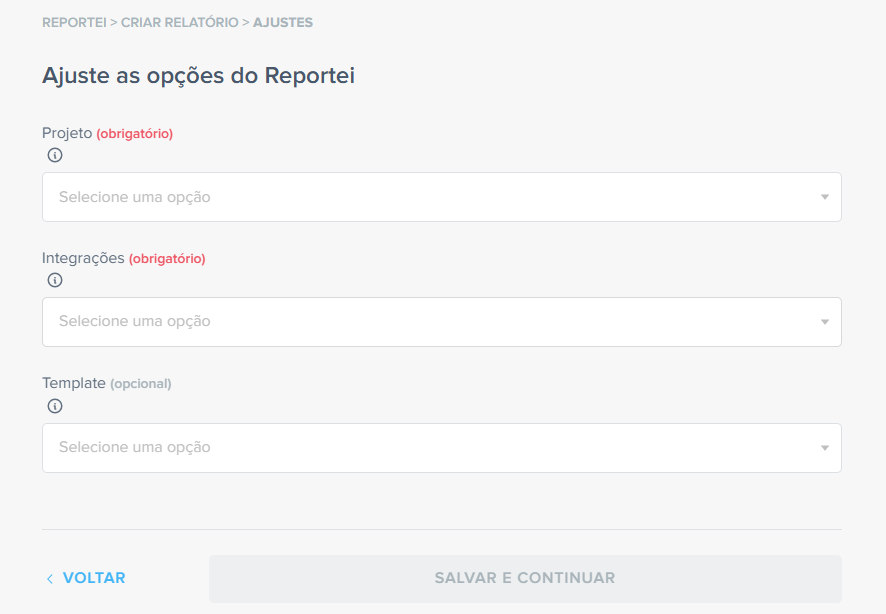
Select the project and its connected integration for the report. You can also choose a predefined template to structure it automatically.
9. Customize the automation
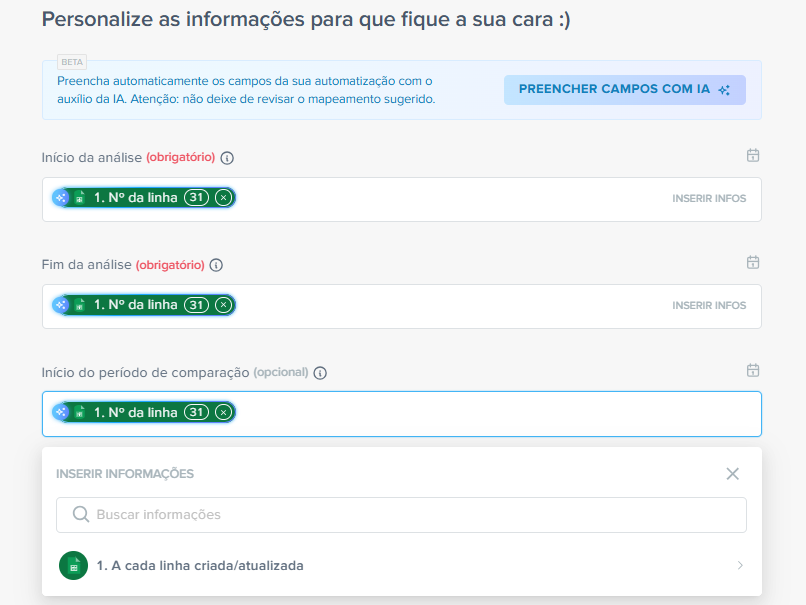
Map spreadsheet columns to the corresponding Reportei fields. Spreadsheet values determine report settings, such as the analysis period, title, and subtitle. The report’s actual performance data comes from integrations already connected to your Reportei project, such as Google Ads, Meta Ads, and Analytics.
You can map these fields:
- Analysis start (required): the column containing the start date of the analysis period
- Analysis end (required): the column containing the end date of the analysis period
- Comparison period start (optional): the column containing the comparison start date
- Comparison period end (optional): the column containing the comparison end date
- Title (optional): customize the report title using a column value
- Subtitle (optional): customize the report subtitle using a column value
Important: you can use “Fill fields with AI” to map fields automatically, but always review the suggested mapping for accuracy.
10. Finish the automation
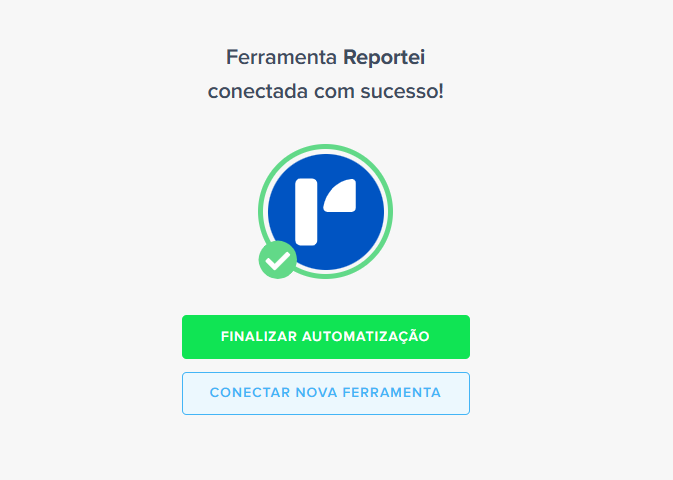
On the confirmation screen, click “Finish automation”. Choose “Connect new tool” to add further actions, such as a Slack notification or an entry in another spreadsheet.
Now, whenever a row is created or updated in Google Sheets, a report is created automatically in Reportei.
Extra tips
Automate dashboards and Timelines too
In addition to reports, Google Sheets can trigger:
- Automatic Reportei dashboard creation (choose “Create dashboard”)
- Reportei Timeline milestones (choose “Add milestone to Timeline”)
Send Reportei data back to Google Sheets
The integration works in both directions. You can record data in a Google Sheets spreadsheet when a Reportei report is viewed or a Control goal is reached, building a history for analysis.
Useful links
• Explore Reportei and Google Sheets automations in Pluga: pluga.co/ferramentas/reportei/integracao/google-sheets
• Learn how to connect Pluga to Reportei: reportei.com/central-de-ajuda/como-integrar-a-pluga-ao-reportei
• Pluga Help Center: pluga.zendesk.com/hc/pt-br
If you have questions, contact our Support team! =)