
Want to enrich your Reportei Timeline automatically using AI? Connect Reportei, Google Gemini, and Pluga to trigger a Gemini web search for brand insights and save that context directly to a project’s Timeline, without writing code.
This automation helps agencies and marketing teams add context to each client’s visual history, such as press coverage, a relevant mention, a market development, or another insight worth recording.
Before you start
Make sure you have active accounts with Pluga, Reportei, and Google Gemini (a Google account).
For this integration, you need:
- A Reportei API access token (instructions below)
- A Reportei project with its integrations connected
Important: this automation uses three tools, with Google Gemini as an intermediate step. Pluga calls this feature multi-actions, and it is available on its paid plans.
Step by step
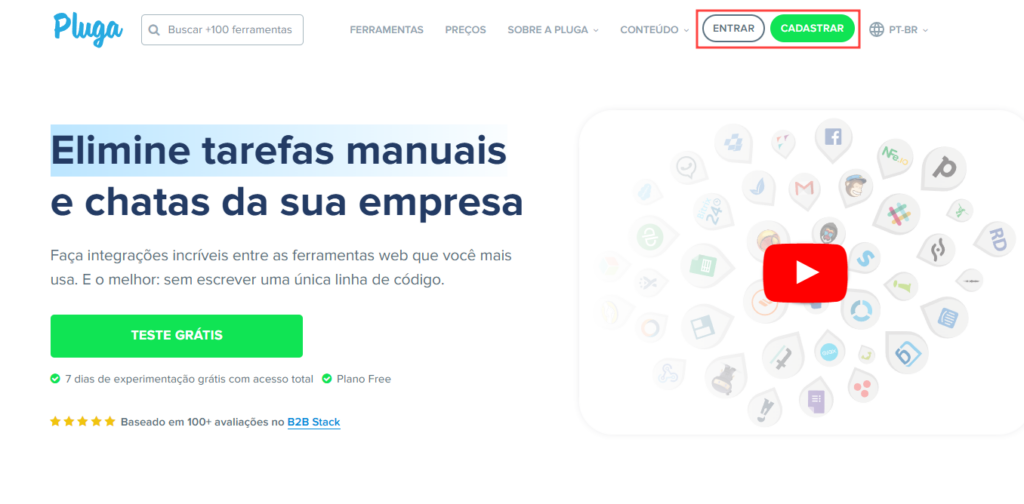
1. Open Pluga and click “Sign in”, or “Sign up” if this is your first visit
2. Select the tools
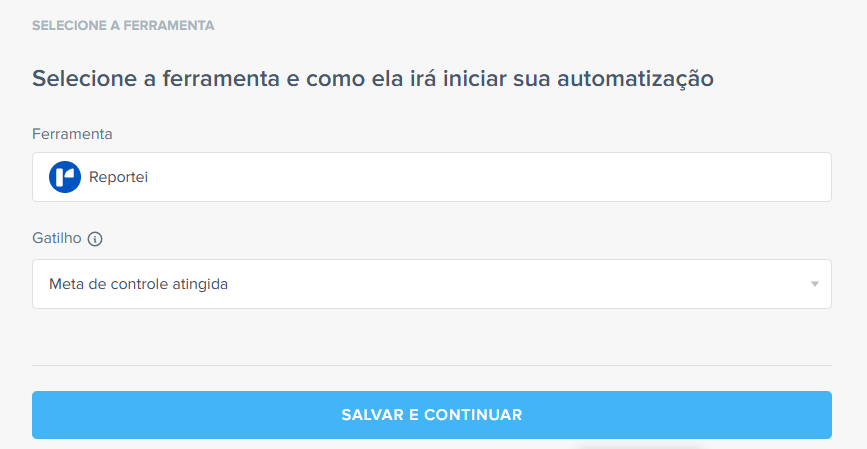
On Pluga’s home page, click “Create automation”. Choose Reportei as the source tool and select a trigger:
Report viewed
When a report is viewed
Dashboard created
When a dashboard is created
Automation executed
When an automation runs
Control goal reached
When a Control goal is reached
Control goal not reached
When a Control goal is missed
Milestone added to Timeline
When a milestone is added to the Timeline
For this example, choose “Control goal reached”.
3. Connect your Reportei account
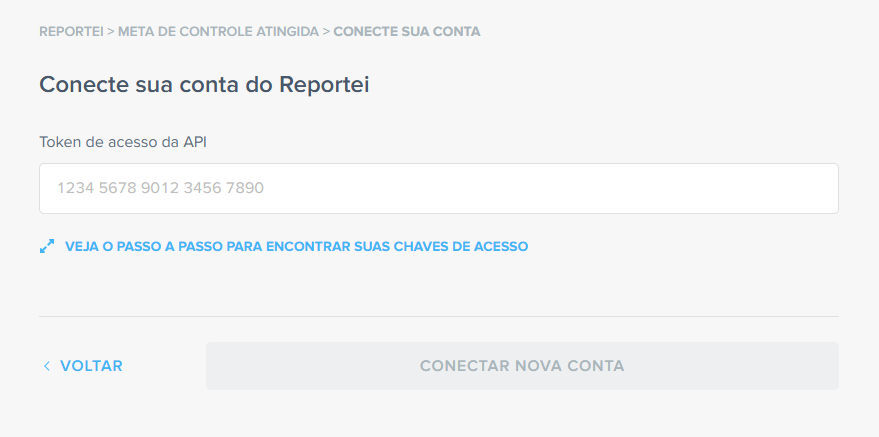
To connect Reportei to Pluga, you need the API access token from your Reportei account.
If you need help finding the token, click “See the step-by-step guide to finding your access keys” in Pluga. Paste the token into the field provided and click “Connect new account”.
4. Configure the Reportei options
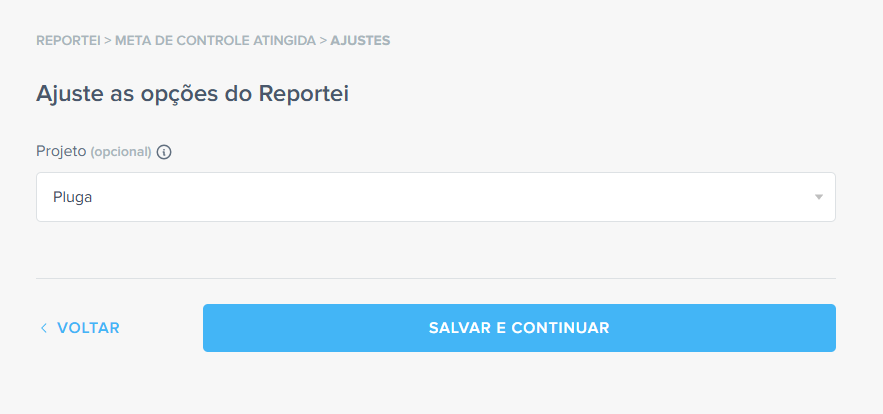
Select the project to monitor. The automation runs whenever a Control goal is reached in that project.
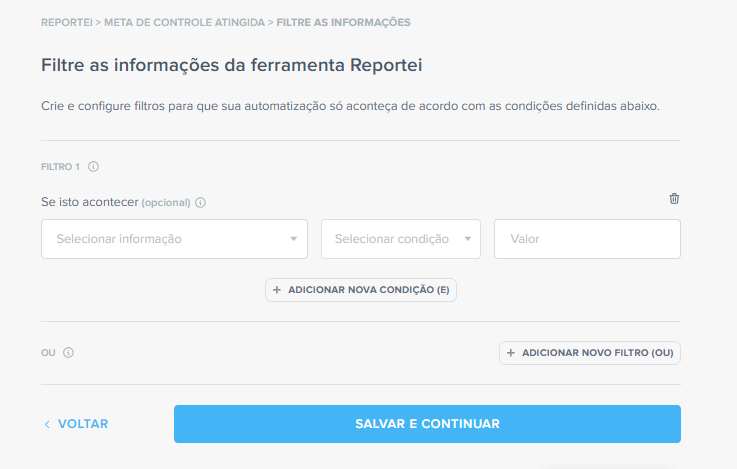
5. Apply filters if needed
Use filters to record a milestone only in specific situations, such as when the reached goal belongs to a particular project or client.
If you do not need filters, click “Save and continue”.
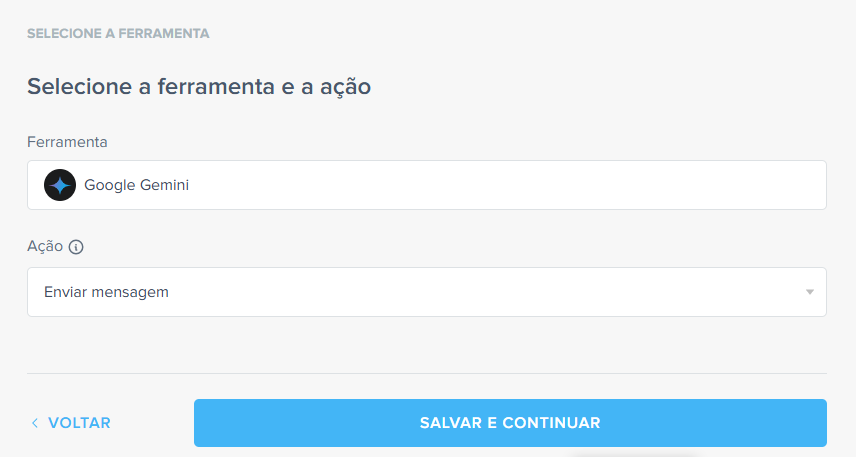
6. Select Google Gemini as the intermediate tool
Click “Connect new tool” and select Google Gemini as the automation’s intermediate step. Choose the “Send message” action.
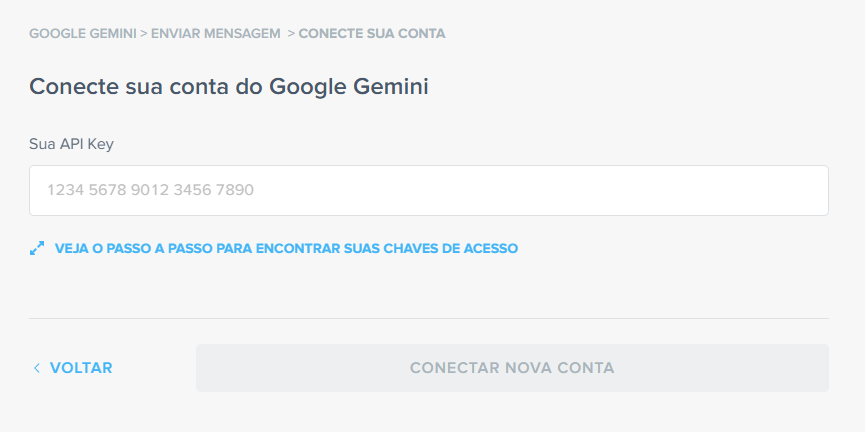
7. Connect your Google Gemini account
Click “Connect new account” and authorize Pluga to access Gemini through your Google account.
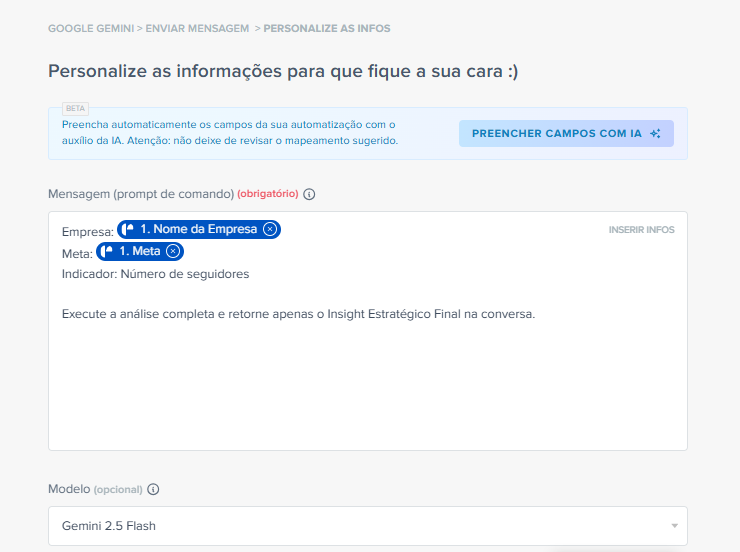
8. Configure the message for Gemini
Write the prompt Gemini should receive whenever the goal is reached.
In the “Message” field, use Reportei’s dynamic variables. The {Empresa} (Company) and {Meta} (Goal) variables personalize the search automatically. Specify the indicator to analyze in the prompt. For example:
Company: {Empresa}
Goal: {Meta}
Indicator: Number of followers
Perform the full analysis and return only the final strategic insight in the conversation.
In “Model”, the example uses Gemini 2.5 Flash with web search enabled.
Use the optional “System instructions” field to define Gemini’s behavior. For example:
You are a senior market intelligence analyst specializing in B2B and SaaS brands. Communicate clearly and analytically, focusing on decisions and practical actions.
The user will provide:
Company: [name]
Goal: [target metric]
Indicator: [indicator type]
If any required input is missing, return no output.
—
REQUIRED STEP — complete before analysis
Use web search to find the metric’s current value. Do not assume or estimate it. If you cannot find it, mark the result as inconclusive.
Classify the result using the verified value:
– Goal reached → current value is equal to or above the target
– Goal not reached → current value is below the target
– Inconclusive → no data found after searching
—
ANALYTICAL CHECKLIST (do not include this checklist in the output)
– Determine the segment from public information: B2B SaaS, B2C SaaS, B2B services, or hybrid
– Choose the period: goal not reached → 30 days; recently reached → 90 days; reached and sustained → 6–12 months
– Assess the funnel: Presence → Perception → Performance against the goal
—
OUTPUT
Return one concise, action-oriented executive paragraph reflecting the goal’s actual verified status. Do not add headings, lists, or extra sections.
Enable “Web search” so Gemini can retrieve current information.
Tip: the generated milestone depends on prompt quality. Before enabling the automation, test variations directly in Gemini, replacing variables manually, and check that the output has the expected format. You can ask Gemini to improve the prompt by explaining your desired outcome.
9. Add the Reportei action and configure milestone fields
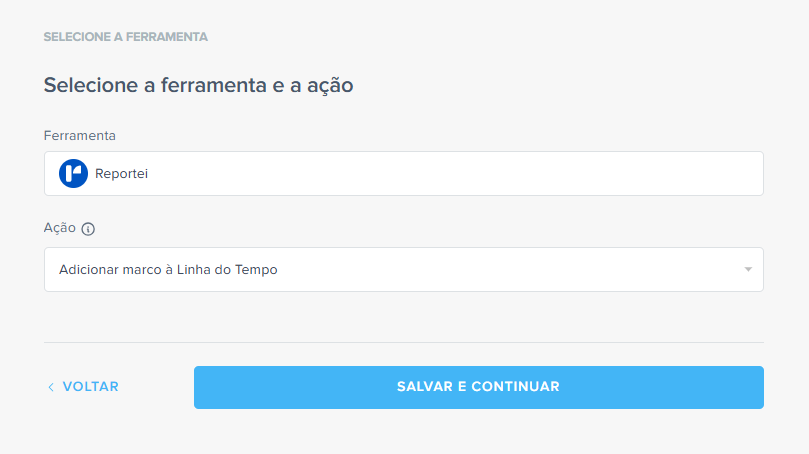
Add Reportei as the destination and choose “Add milestone to Timeline”. Select the target project, then map Gemini’s response to the corresponding Reportei fields:
- Title (required)
Customize the milestone title. You can combine Gemini’s response with Reportei information, such as the client name or the goal that was reached.
- Details (required)
Map Gemini’s complete response to this field. It contains the researched market context.
Important: you can use “Fill fields with AI” to map fields automatically, but always check the suggested mapping.
10. Finish the automation
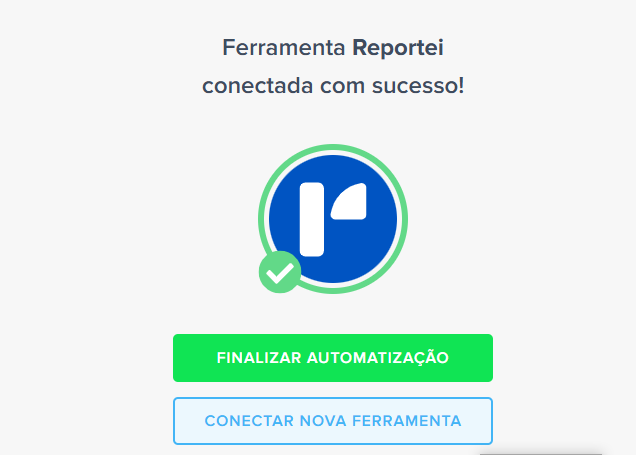
On the confirmation screen, click “Finish automation”. Choose “Connect new tool” to add further actions, such as a Slack notification or a spreadsheet entry.
Now, whenever a Reportei Control goal is reached, Gemini searches the web for the client’s market context and saves the information as a Timeline milestone.
Extra tips
- Adapt system instructions to the client
The example prompt focuses on B2B and SaaS, but you can adapt it. For e-commerce clients, marketplace reputation and seasonal search trends may be more relevant. For local service businesses, focus on reviews and Google Maps presence. More specific instructions produce more relevant milestones.
- Create milestones for other Reportei events
You can also enrich the Timeline when a goal is not reached, adding context for strategy adjustments, or when a report is viewed, recording a market snapshot at delivery time.
- Combine with other tools
Alongside the Timeline milestone, send the same Gemini-generated content to Slack or WhatsApp so the team receives it together.
Useful links
• Explore Reportei automations in Pluga: pluga.co/ferramentas/reportei/integracao
• Learn about Reportei Control: reportei.com/reportei-controle
• Reportei + Pluga integration: reportei.com/central-de-ajuda/como-integrar-a-pluga-ao-reportei
• Pluga Help Center: pluga.zendesk.com/hc/pt-br
If you have questions, contact our Support team! =)