
Want to notify your team automatically when a Reportei Control goal is reached? With Pluga, you can configure automatic Slack notifications without writing code.
This automation is useful for agencies and marketing teams that need to track goals in real time and communicate results quickly.
Before you start
Make sure you have active accounts with Pluga, Reportei, and Slack.
For public Slack channels, the automation works without an additional invitation. For private channels, invite the Pluga bot: mention “@Pluga” in the channel and click “Invite” when Slackbot suggests it.
Step by step
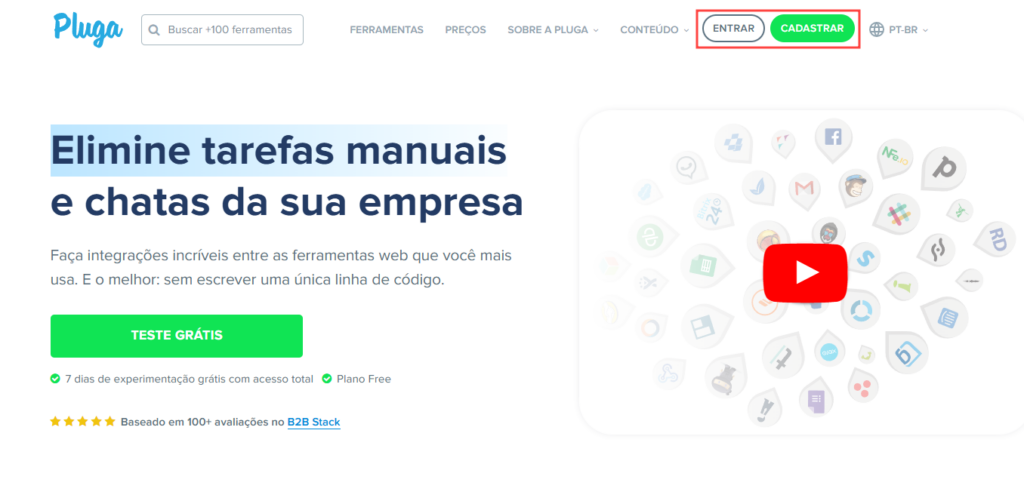
1. Open Pluga and click “Sign in”, or “Sign up” if this is your first visit
2. Select the tools
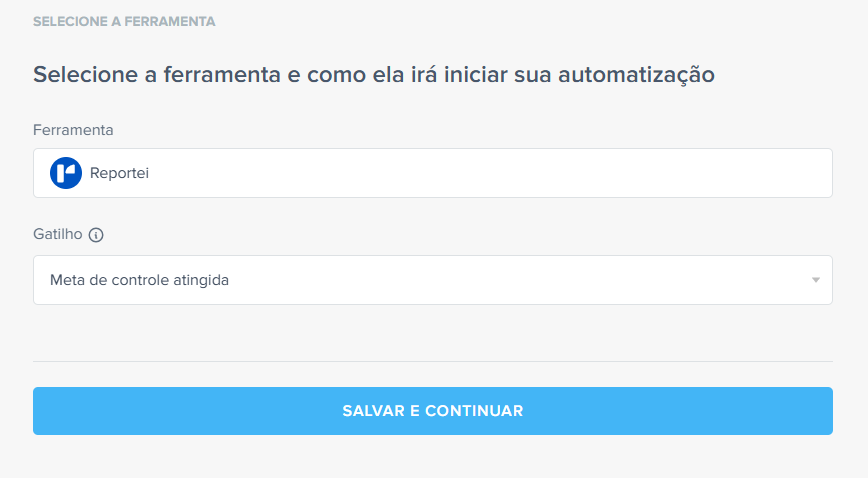
On Pluga’s home page, click “Create automation”. Choose Reportei as the source tool and select an available trigger:
Report viewed: when a report is viewed
Dashboard created: when a dashboard is created
Automation executed: when an automation runs
Control goal reached: when a Control goal is reached
Control goal not reached: when a Control goal is missed
Milestone added to Timeline: when a milestone is added to the Timeline
For this example, choose “Control goal reached”.
3. Connect your Reportei account
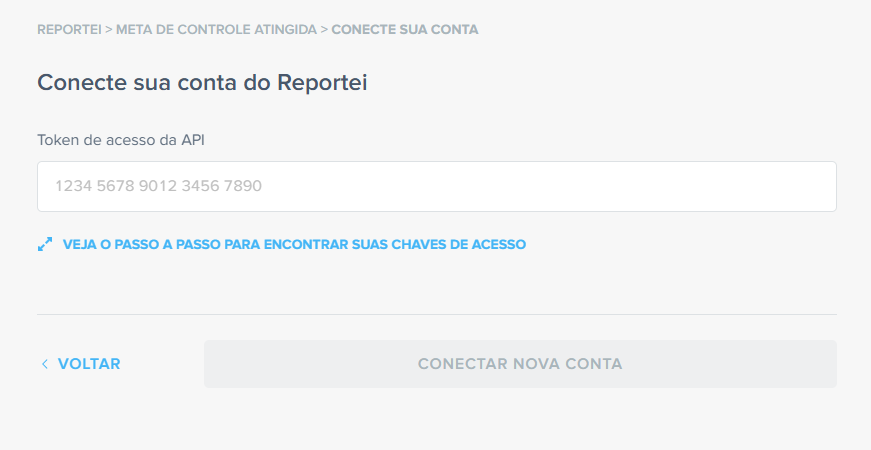
To connect Reportei to Pluga, you need the API access token from your Reportei account.
If you need help finding it, click “See the step-by-step guide to finding your access keys” on the Pluga screen. Paste the token into the field provided and click “Connect new account”.
4. Configure the Reportei options
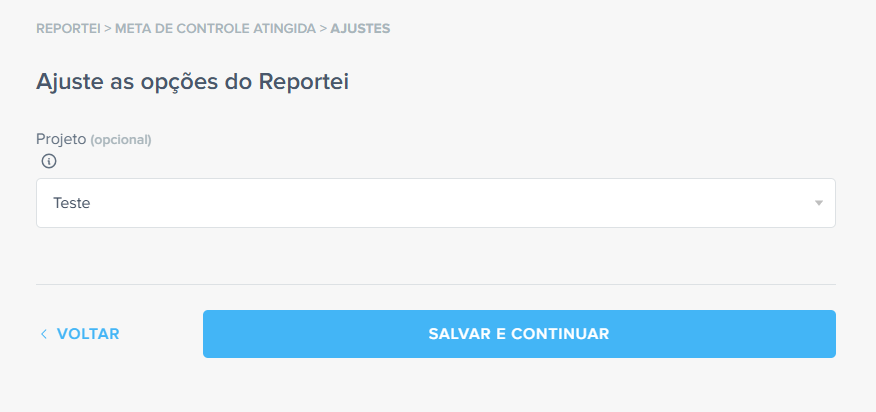
Select the project and Control goal to monitor. The automation runs whenever that goal is reached.
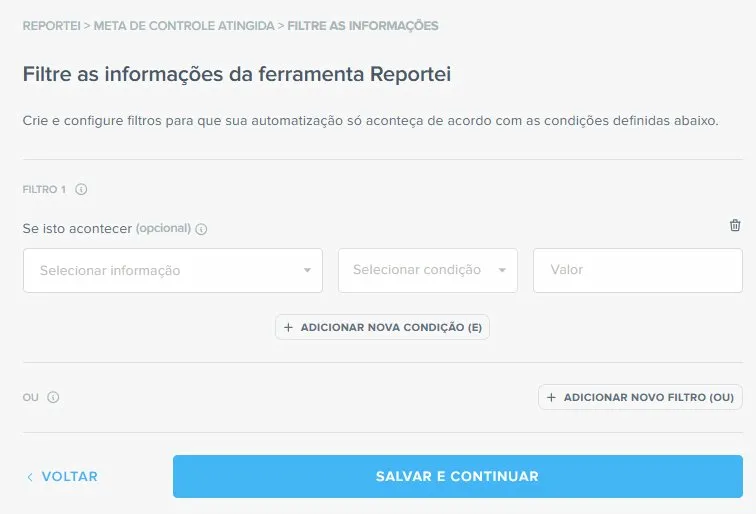
5. Apply filters if needed
Use filters to send Slack notices only in specific situations—for example, when a reached goal belongs to a particular project or type. If you do not need filters, click “Save and continue”.
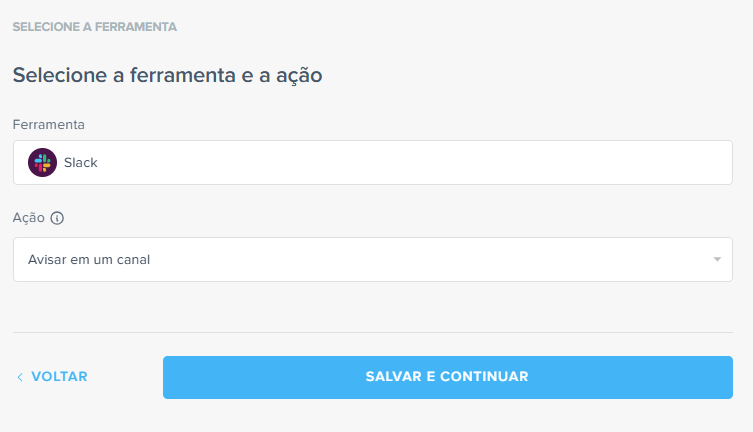
6. Select the destination tool
Select “Slack” as the destination to receive information when the trigger fires. Choose the action “Notify a channel”.
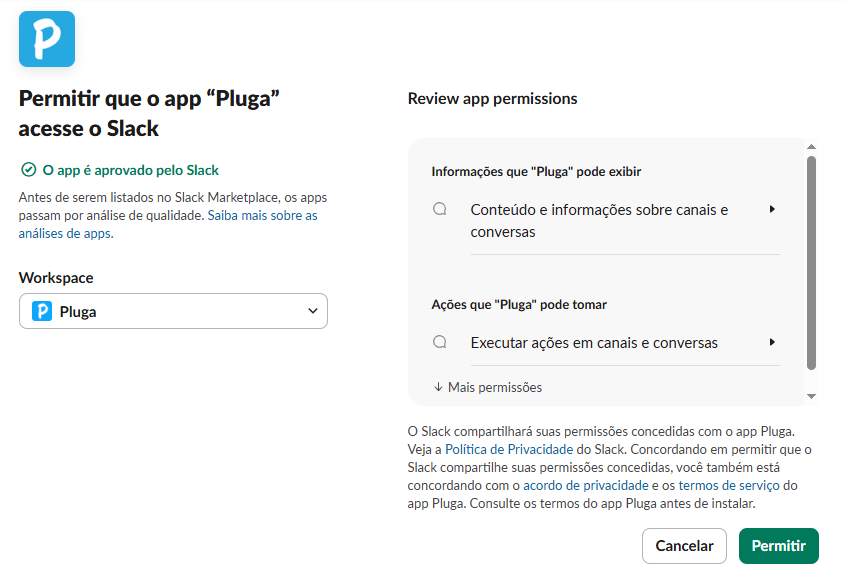
7. Connect your Slack account
Click “Connect new account” and authorize Pluga to send messages to your Slack workspace. You need administrator permissions or approval from the workspace administrator.
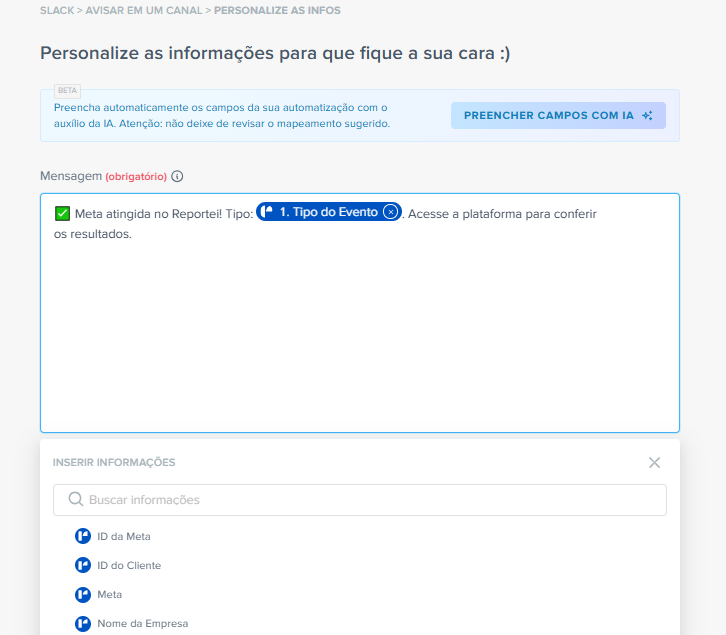
8. Configure the channel and message
Choose the Slack channel for the notification, then customize the message. You can use Reportei’s dynamic variables, such as the project name and goal details.
9. Finish the automation
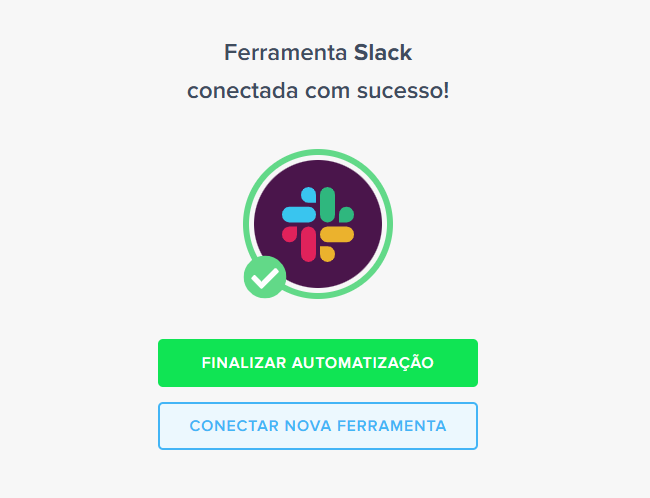
On the confirmation screen, click “Finish automation”. To add more actions, such as writing to a spreadsheet or sending an email, choose “Connect new tool”. Pluga lets you chain several actions in one automation.
Extra tip
You can also create automations for goals that are not reached. Select the “Control goal not reached” trigger to keep your team informed about both successes and areas needing adjustment.
Useful links
• Explore Reportei automations in Pluga: pluga.co/ferramentas/reportei/integracao
• Learn about Reportei Control: reportei.com/reportei-controle
• Reportei + Pluga integration: reportei.com/central-de-ajuda/como-integrar-a-pluga-ao-reportei
If you have questions, contact our Support team! =)