
This article is also available in the English Help Center.
When connecting a spreadsheet to Reportei, you need to choose which columns (for vertical spreadsheets) or rows (for horizontal spreadsheets) will be used to create metrics, charts, and tables—and how Reportei should interpret the data based on the column or row classification. You configure these settings during the spreadsheet data validation step:
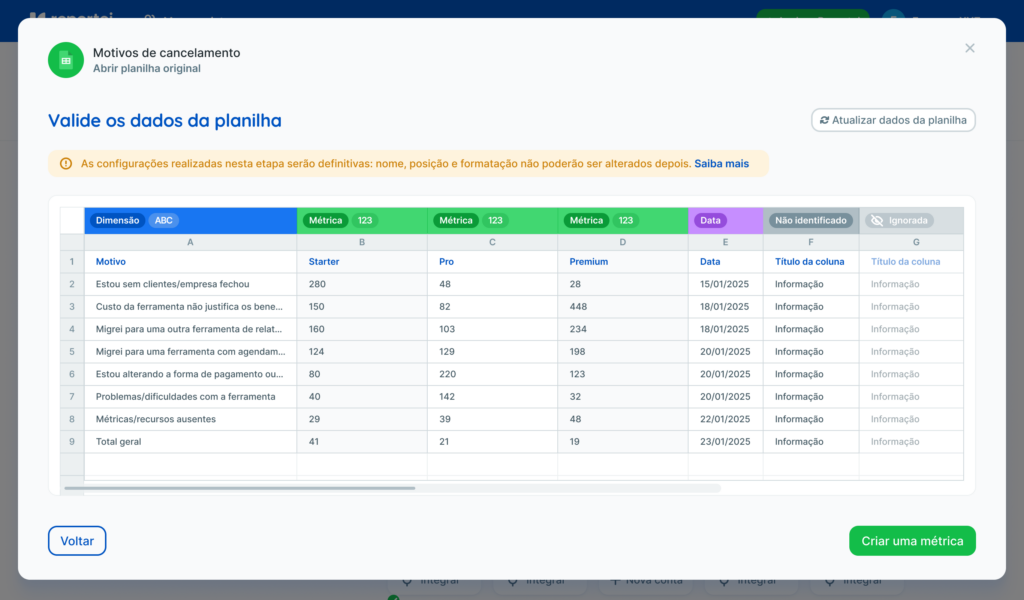
Check before you continue: Make sure each column or row has the correct name, position, and data type. The settings saved during validation cannot be changed later for this integration.
Can I change these settings later?
No. You must classify each column or row correctly at this stage. These settings cannot be edited later.
If you need to change which data is used or how it is organized and classified, you will need to remove the current spreadsheet integration and reconnect the spreadsheet with the new structure.
Why can’t I change the data settings after this step?
When you connect a spreadsheet, Reportei reads its structure based on the columns (or rows) and their classifications. This ensures the data is interpreted correctly.
These classifications define the spreadsheet’s “framework.” Once saved, this framework serves as the basis for all the metrics, charts, and tables you can use in reports and dashboards.
If you need to change a classification or data type saved during validation, you must reconnect the spreadsheet so Reportei can use the new structure and recreate the metrics, tables, and charts based on that new framework.
Can I change my spreadsheet after connecting it?
Avoid structural changes to the original spreadsheet after connecting it, as they can affect how your reports work. Here are some examples of changes to avoid:
If your spreadsheet is vertical:
❌ Deleting or reordering columns
❌ Inserting columns in the middle of the existing structure
If your spreadsheet is horizontal:
❌ Deleting or reordering rows
❌ Inserting rows in the middle of the existing structure
If you need to make these changes, you will have to reconnect the spreadsheet. To learn more, see Can I make changes to my spreadsheet after connecting it to Reportei?
💡 Final tip
Before connecting your spreadsheet, review it carefully. Make sure all the columns you need are present, have clear headings, and are organized the way you intend to use them in your reports.